Adding Models to the ComfyUI Docker向 ComfyUI Docker 添加模型
Pull ddtraveller/comfyui-mac and run ComfyUI on your Mac — what's inside, how to add models, drive it from its JavaScript object, and find templates your models can run.拉取 ddtraveller/comfyui-mac 并在你的 Mac 上运行 ComfyUI——介绍镜像里有什么、如何添加模型、如何用它的 JavaScript 对象驱动它,以及找到你的模型能运行的模板。
★What's in this docker — and how to use it这个 docker 里有什么——以及如何使用
The comfyui-mac image ships two ready-made workflows — text-to-image and image-to-video — plus the custom nodes they need. The models below are quick one-time downloads you drop into your mounted models folder (see Run it on macOS); then open the Workflows sidebar and click a workflow. In Docker on a Mac everything runs on CPU, so the few-step setups below are the usable ones.comfyui-mac 镜像自带两个现成的工作流——文生图和图生视频——以及它们所需的自定义节点。下面的模型是一次性的快速下载,放进你挂载的 models 目录即可(见在 macOS 上运行);然后打开 Workflows 侧边栏点击工作流。在 Mac 的 Docker 中一切都在 CPU 上运行,所以下面的少步数配置才是实用的。
Text-to-image文生图
| Model模型 | Family家族 | Use it for适用于 |
|---|---|---|
sd_turbo.safetensors | SD-Turbo | Fastest — 4 steps, CFG 1, 512². The default in the workflow below.最快——4 步,CFG 1,512²。下方工作流的默认模型。 |
counterfeit-v3.safetensors | SD1.5 | Anime stills — ~22 steps, CFG 7.动漫静图——约 22 步,CFG 7。 |
animagine-xl-3.1.safetensors | SDXL | Higher-quality anime — 1024², slower on CPU.更高质量的动漫——1024²,CPU 上较慢。 |
lanna_turbo → type a prompt in the positive box → Run. ~18 s on CPU. To switch models, change the Load Checkpoint dropdown (and match the family's steps / CFG / size above).Workflows 侧边栏 → lanna_turbo → 在正向框输入提示词 → Run。CPU 上约 18 秒。要换模型,改 Load Checkpoint 下拉框(并按上表对应家族的步数 / CFG / 尺寸)。
Image-to-video图生视频
Built on AnimateDiff — it animates a clip from your input image using these pieces (download each into your models folder):基于 AnimateDiff——它从你的输入图片生成一段动画,用到以下组件(各自下载到你的 models 目录):
| Model模型 | Role作用 |
|---|---|
v3_sd15_mm.ckpt | AnimateDiff motion module — adds movementAnimateDiff 运动模块——添加运动 |
ip-adapter-plus_sd15 + ip_adapter_clip_h | Conditions the video on your reference image用你的参考图片来引导视频 |
lcm-lora-sdv15 | Few-step (LCM) sampling so it finishes sooner少步数(LCM)采样,更快完成 |
counterfeit-v3.safetensors | The SD1.5 base the motion module rides on运动模块所依附的 SD1.5 基础模型 |
animatediff_i2v → in the Load Image node upload your starting image → Run. Outputs a 16-frame MP4 to output/ via the motion module + IPAdapter. On CPU this is slow (tens of minutes); on a GPU it's quick — the point is the stack is wired and ready.Workflows 侧边栏 → animatediff_i2v → 在 Load Image 节点上传你的起始图片 → Run。通过运动模块 + IPAdapter 把一段 16 帧的 MP4 输出到 output/。在 CPU 上较慢(数十分钟);在 GPU 上很快——重点是这套组合已经连好、可直接用。
Run it on macOS在 macOS 上运行
Get it running in two steps — pull the image, then run it with two folders mounted from your Mac. Anything you drop in those host folders appears instantly inside the container — that's the whole trick behind Method A.两步即可运行——先拉取镜像,再在启动时从你的 Mac 挂载两个目录。你放进这些宿主机目录的任何文件都会立即出现在容器内——这正是方法 A 的核心原理。
1. Pull the image — with Docker Desktop for Mac running:1. 拉取镜像——在 Docker Desktop for Mac 运行的情况下:
docker pull ddtraveller/comfyui-macMulti-arch (Apple Silicon + Intel). :mac, :spark, and :latest are the same image, so plain ddtraveller/comfyui-mac (= :latest) works on any Mac. To pin a tag: docker pull ddtraveller/comfyui-mac:mac.多架构(Apple Silicon + Intel)。:mac、:spark 和 :latest 是同一镜像,所以直接用 ddtraveller/comfyui-mac(即 :latest)在任何 Mac 上都可用。要指定标签:docker pull ddtraveller/comfyui-mac:mac。
2. Create the folders and run it:2. 创建目录并运行:
# create the host folders, then run
mkdir -p ~/comfyui/models ~/comfyui/output
docker run -d --name comfyui -p 8188:8188 \
  -v ~/comfyui/models:/workspace/ComfyUI/models \
  -v ~/comfyui/output:/workspace/ComfyUI/output \
  ddtraveller/comfyui-mac
# then open http://localhost:8188 — the two workflows are already in the sidebar| Host folder (macOS)宿主机目录(macOS) | Inside container容器内路径 | Holds存放内容 |
|---|---|---|
~/comfyui/models | /workspace/ComfyUI/models | all models (you download these)所有模型(由你下载) |
~/comfyui/output | /workspace/ComfyUI/output | generated images / video生成的图片 / 视频 |
Confirm the mounts with:用此命令确认挂载: docker inspect comfyui --format '{{json .Mounts}}'
/workspace/ComfyUI/user. Mounting a host folder there would shadow them (see Method B's bind-mount gotcha) — so the run above only mounts models and output.两个工作流已打包进镜像,位于 /workspace/ComfyUI/user。在那里挂载宿主机目录会把它们遮盖掉(见方法 B 的绑定挂载陷阱)——所以上面的命令只挂载 models 和 output。

~/comfyui/models maps to /workspace/ComfyUI/models.确认绑定挂载——宿主机的 ~/comfyui/models 映射到 /workspace/ComfyUI/models。UIFind & use models in the UI在界面中查找并使用模型
Everything you need to see an installed model and put it to work is in the browser at localhost:8188 — no terminal required. Start here.查看已安装的模型并把它用起来所需的一切,都在浏览器 localhost:8188 中——无需终端。从这里开始。
See what's installed查看已安装了什么
Three ways, fastest first:三种方式,由快到慢:
The Model Library sidebar — in the left toolbar click the Model Library icon (or press M). It lists every model the container knows about, grouped by type — the most complete at-a-glance view, no node required.Model Library(模型库)侧边栏——在左侧工具栏点击 Model Library 图标(或按 M 键)。它按类型分组列出容器已知的所有模型——一目了然、最完整,且无需任何节点。
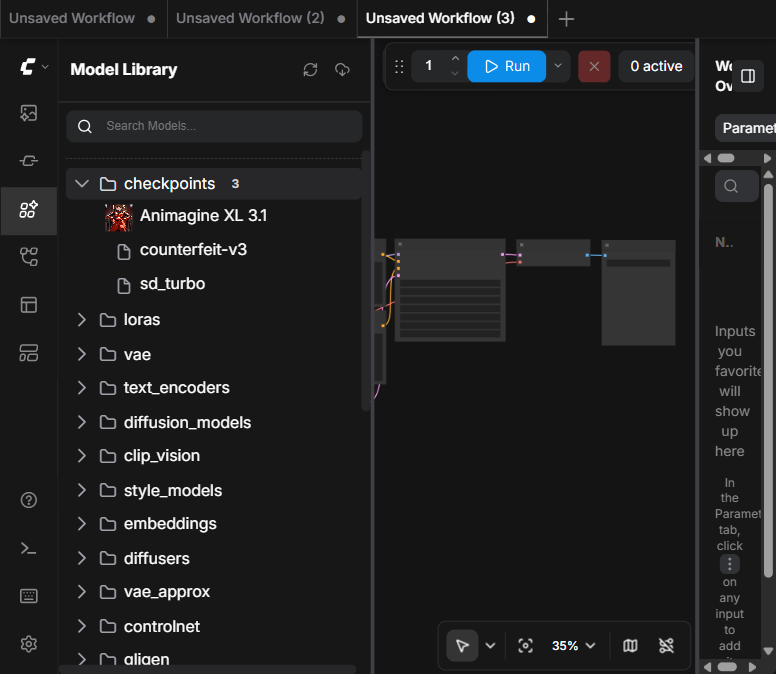
checkpoints expanded — Animagine XL 3.1, counterfeit-v3, and sd_turbo, plus every other model folder.展开了 checkpoints 的 Model Library——Animagine XL 3.1、counterfeit-v3 和 sd_turbo,以及其它所有模型目录。A node dropdown — add a Load Checkpoint node and click its ckpt_name dropdown; it lists every checkpoint. Same for Load LoRA (loras/), Load VAE (vae/), etc. — each loader lists its own subfolder.节点下拉框——添加一个 Load Checkpoint 节点,点击它的 ckpt_name 下拉框,会列出所有 checkpoint。Load LoRA(loras/)、Load VAE(vae/)等同理——每个加载器各自列出对应的子目录。
The browser console — open DevTools (F12) → Console for an exact, scriptable list straight from the node-definition cache:浏览器控制台——打开开发者工具(F12)→ Console,直接从节点定义缓存中取出精确、可脚本化的列表:
(await fetch('/object_info/CheckpointLoaderSimple').then(r => r.json()))
  .CheckpointLoaderSimple.input.required.ckpt_name[0]
// -> ["animagine-xl-3.1.safetensors","counterfeit-v3.safetensors","sd_turbo.safetensors"]docker restart comfyui) before checking, or it won't appear yet.这三种方式读取的都是页面加载时缓存的列表。把新模型放进 models 目录后,检查之前请先按 R 键(或执行 docker restart comfyui),否则它还不会出现。
Use a model — wire it into a workflow使用模型——把它接入工作流
A model only does something once it's in a graph and you click Run. Two ways to get there:模型只有接入节点图并点击 Run 后才会真正起作用。两种方式:
- From a template (fastest) — load a ready-made workflow that already wires everything, then just set its Load Checkpoint to your model. See the next section.从模板开始(最快)——加载一个已经把一切连好的现成工作流,然后只需把它的 Load Checkpoint 设为你的模型。见下一节。
- From scratch — double-click the empty canvas, search
Load Checkpoint, add it, and pick your model inckpt_name. Wire its outputs into the standard chain: two CLIP Text Encode nodes (positive / negative) → KSampler → VAE Decode → Save Image. Type a prompt and click Run.从零开始——双击空白画布,搜索Load Checkpoint,添加它,并在ckpt_name中选择你的模型。把它的输出接入标准链路:两个 CLIP Text Encode 节点(正向 / 负向)→ KSampler → VAE Decode → Save Image。输入提示词并点击 Run。
On this CPU-only box, pick a few-step checkpoint (sd_turbo: 4 steps, CFG 1) so a render finishes in seconds, not minutes.在这台仅 CPU 的机器上,选择少步数 checkpoint(sd_turbo:4 步,CFG 1),让生成几秒完成,而不是几分钟。
Templates — and finding ones your models can run模板——以及找到你的模型能运行的那些
ComfyUI ships 400+ example workflows ("templates"). Open them from the Templates icon in the left toolbar (or Workflow → Browse Templates). The catch: most target models you don't have (Flux, Qwen-Image, Wan) or cloud APIs that need keys (OpenAI, Kling, Nano Banana) — load one of those and ComfyUI pops a missing-models dialog.ComfyUI 自带 400 多个示例工作流(“模板”)。从左侧工具栏的 Templates 图标打开(或 Workflow → Browse Templates)。问题在于:大多数模板针对的是你没有的模型(Flux、Qwen-Image、Wan)或需要密钥的云端 API(OpenAI、Kling、Nano Banana)——加载这类模板时,ComfyUI 会弹出缺少模型的对话框。
To find templates that run on what you already have, open the Model Filter and tick the families you installed — SD1.5 (counterfeit-v3) and SDXL (animagine-xl-3.1, sd_turbo). The list narrows to local-model templates like SDXL Simple and SDXL Turbo. Add the Runs on filter to drop API-only ones.要找到能在你现有模型上运行的模板,打开 Model Filter,勾选你已安装的模型家族——SD1.5(counterfeit-v3)和 SDXL(animagine-xl-3.1、sd_turbo)。列表会收窄到本地模型模板,例如 SDXL Simple 和 SDXL Turbo。再加上 Runs on 筛选可排除仅云端 API 的模板。
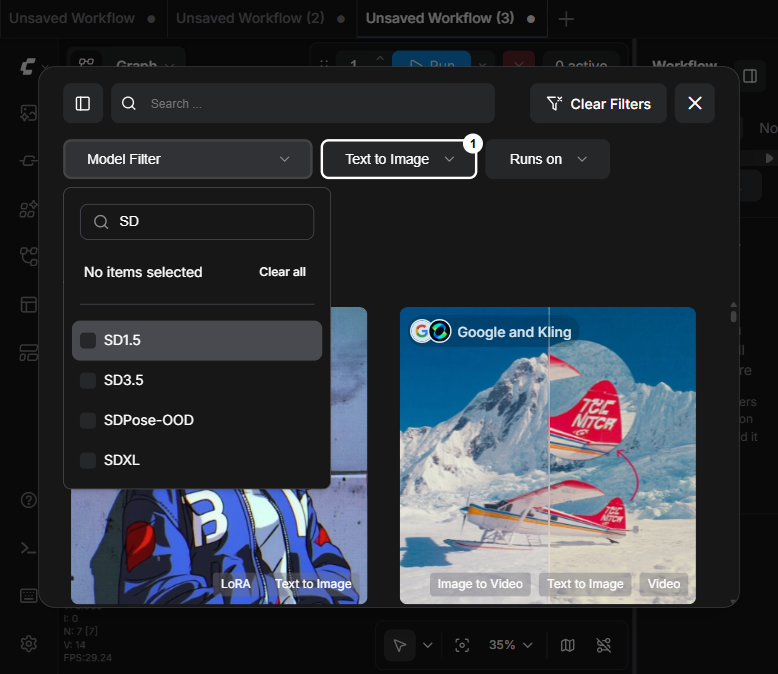
SD1.5 / SDXL to match your installed checkpoints.在模板的 Model Filter 中搜索 “SD”——勾选 SD1.5 / SDXL 以匹配你已安装的 checkpoint。animagine-xl-3.1 or counterfeit-v3 listed in Templates — the browser shows example workflows, and your files only appear in the Model Library and node dropdowns. The Model Filter groups templates by model family: counterfeit-v3 is SD1.5, animagine-xl-3.1 is SDXL. (Careful: the Anima entry is a different model, not your Animagine.) So filter by SDXL, load a template like SDXL Simple, then open its Load Checkpoint dropdown and pick animagine-xl-3.1 — the template is the wiring, your file is the weights.你不会在 Templates 里看到 animagine-xl-3.1 或 counterfeit-v3——浏览器显示的是示例工作流,你的文件只出现在 Model Library 和节点下拉框里。Model Filter 按模型家族对模板分组:counterfeit-v3 属于 SD1.5,animagine-xl-3.1 属于 SDXL。(注意:过滤器里的 Anima 是另一个模型,不是你的 Animagine。)所以请按 SDXL 筛选,加载像 SDXL Simple 这样的模板,再打开它的 Load Checkpoint 下拉框并选择 animagine-xl-3.1——模板是接线,你的文件才是权重。
Map a checkpoint to its family把 checkpoint 对应到它的家族
The family is what decides which Model Filter to tick, which templates will work, and the right resolution. Your installed checkpoints:模型家族决定了该勾选哪个 Model Filter、哪些模板能用,以及正确的分辨率。你已安装的 checkpoint:
| Checkpoint (file · size)Checkpoint(文件 · 大小) | Family家族 | Template to use应使用的模板 |
|---|---|---|
counterfeit-v3.safetensors · 4.0 GB | SD1.5 | Filter SD1.5 — basic text-to-image templates筛选 SD1.5——基础的文生图模板 |
animagine-xl-3.1.safetensors · 6.5 GB | SDXL | Filter SDXL — e.g. "SDXL Simple"筛选 SDXL——例如 “SDXL Simple” |
sd_turbo.safetensors · 4.9 GB | SD-Turbo (SD2.1-based)SD-Turbo(基于 SD2.1) | A basic SD1.5-style graph with turbo settings (4 steps, CFG 1) — not SDXL基础的 SD1.5 风格节点图,配 turbo 设置(4 步,CFG 1)——不是 SDXL |
How to tell the family of any new checkpoint:如何判断任何新 checkpoint 的家族:
- The model card where you downloaded it is the definitive source — it states the base model (SD 1.5, SDXL, SD3.5, Flux, …).下载页的模型卡是权威来源——它会写明基础模型(SD 1.5、SDXL、SD3.5、Flux……)。
- Quick hints: the name (
xl→ SDXL,turbo→ few-step distilled,flux→ Flux) and the file size — roughly SD1.5 ≈ 2–4 GB, SDXL ≈ 6–7 GB, SD-Turbo ≈ 5 GB, Flux ≈ 11–24 GB.快速线索:名称(xl→ SDXL,turbo→ 少步数蒸馏,flux→ Flux)和文件大小——大致 SD1.5 ≈ 2–4 GB,SDXL ≈ 6–7 GB,SD-Turbo ≈ 5 GB,Flux ≈ 11–24 GB。 - Mismatch symptom: a wrong-family template loads fine but outputs garbage — e.g. an SDXL template fed an SD1.5 checkpoint, because the text encoders and native resolution don't match.不匹配的症状:家族不对的模板能加载,但输出是乱图——例如给 SDXL 模板喂了 SD1.5 checkpoint,因为文本编码器和原生分辨率都对不上。
Click a template to load its full graph, set the Load Checkpoint dropdown to your file, and Run. If a template still shows missing models, download them from its dialog (Method A under the hood) or pick another in a family you have.点击一个模板以加载它的完整节点图,把 Load Checkpoint 下拉框设为你的文件,然后 Run。如果模板仍提示缺少模型,可从它的对话框中下载(底层就是方法 A),或换一个你已有家族的模板。
iWhere each model type goes各类模型该放在哪里
ComfyUI sorts models by subfolder. A file in the wrong folder is invisible to the node that needs it (a checkpoint dropped in loras/ won't show in "Load Checkpoint"). The subfolders live under ~/comfyui/models/:ComfyUI 按子目录区分模型。放错目录的文件对需要它的节点是不可见的(放进 loras/ 的 checkpoint 不会出现在 “Load Checkpoint” 里)。这些子目录位于 ~/comfyui/models/ 下:
| Subfolder子目录 | Model type模型类型 | Loaded by node加载节点 |
|---|---|---|
checkpoints/ | Full models (SD1.5, SDXL, SD-Turbo)完整模型(SD1.5、SDXL、SD-Turbo) | Load Checkpoint |
loras/ | LoRA fine-tunesLoRA 微调模型 | Load LoRA |
vae/ | VAE decodersVAE 解码器 | Load VAE |
controlnet/ | ControlNet modelsControlNet 模型 | Load ControlNet Model |
clip_vision/ | Vision encoders (IP-Adapter)视觉编码器(IP-Adapter) | Load CLIP Vision |
animatediff_models/ | Motion modules运动模块 | AnimateDiff Loader |
ARuntime: drop into the mounted models folder运行时:放入挂载的 models 目录
Best for: day-to-day. Trying a new model, no image rebuild, the file lives on your host disk and survives container removal. This is how you added sd_turbo.safetensors.最适合:日常使用。试用新模型、无需重建镜像,文件保存在宿主机磁盘上,容器删除后依然存在。你就是用这种方式添加了 sd_turbo.safetensors。
1. Download straight into the right subfolder1. 直接下载到正确的子目录
From the macOS Terminal. Example — a small SD-Turbo checkpoint:在 macOS 的终端中运行。示例——一个小巧的 SD-Turbo checkpoint:
# curl ships with macOS
curl -L -o ~/comfyui/models/checkpoints/sd_turbo.safetensors \
  "https://huggingface.co/stabilityai/sd-turbo/resolve/main/sd_turbo.safetensors?download=true"
Or with the Hugging Face CLI (resumable, faster for big files):或使用 Hugging Face CLI(支持断点续传,大文件更快):
hf download stabilityai/sd-turbo sd_turbo.safetensors \
  --local-dir ~/comfyui/models/checkpoints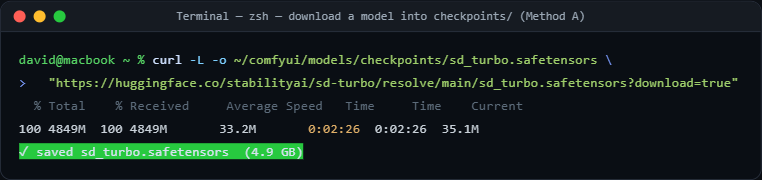
sd_turbo.safetensors straight into the mounted checkpoints/ folder.将 sd_turbo.safetensors 直接下载到挂载的 checkpoints/ 目录。2. Make ComfyUI see it2. 让 ComfyUI 识别它
The file is already inside the container (bind mount), but ComfyUI caches its dropdown lists when the page loads. Two options:文件已经在容器内(绑定挂载),但 ComfyUI 在页面加载时缓存了下拉列表。两种办法:
- In the browser at
localhost:8188, press R or click the ↻ Refresh button. Fastest.在浏览器localhost:8188中,按 R 键或点击 ↻ 刷新 按钮。最快。 - Or restart the container to fully reload:
docker restart comfyui或重启容器以完全重新加载:docker restart comfyui
3. Verify it's registered (optional)3. 验证是否已注册(可选)
Ask the ComfyUI API what checkpoints it can see — no browser needed:向 ComfyUI API 查询它能看到哪些 checkpoint——无需浏览器:
curl -s http://localhost:8188/object_info/CheckpointLoaderSimple \
  | python3 -c "import sys,json;print(json.load(sys.stdin)['CheckpointLoaderSimple']['input']['required']['ckpt_name'][0])"
Returns the list, e.g.返回列表,例如 ['animagine-xl-3.1.safetensors', 'counterfeit-v3.safetensors', 'sd_turbo.safetensors']

sd_turbo.API 确认 ComfyUI 现在能看到全部三个 checkpoint,包括刚添加的 sd_turbo。v1-5-pruned-emaonly... validation error). Always confirm the Load Checkpoint dropdown actually shows your file before clicking Run.如果保存的工作流指向一个 ComfyUI 找不到的模型名,下拉框会悄悄回退到模板默认值(你可能会看到 v1-5-pruned-emaonly... 的校验错误)。点击 Run 之前,务必确认 Load Checkpoint 下拉框确实显示了你的文件。
BBaked in: add models via the Dockerfile打包进镜像:通过 Dockerfile 添加模型
Best for: a portable, reproducible image — ship the container to another machine (or the Spark) and the models travel with it. No host folder required. Trade-off: bigger image and a rebuild whenever models change.最适合:可移植、可复现的镜像——把容器交付到另一台机器(或 Spark),模型随镜像一起带走。无需宿主机目录。代价:镜像更大,且每次模型变动都要重建。
Option B1 — download during build (keeps the repo small)方案 B1——在构建时下载(仓库保持精简)
Add RUN lines that fetch models into /workspace/ComfyUI/models/... while the image builds. Nothing large gets committed to git.添加 RUN 指令,在镜像构建时把模型拉取到 /workspace/ComfyUI/models/...。不会有大文件提交进 git。
FROM ddtraveller/comfyui-mac

# pull a checkpoint into the image at build time
RUN curl -L -o /workspace/ComfyUI/models/checkpoints/sd_turbo.safetensors \
    "https://huggingface.co/stabilityai/sd-turbo/resolve/main/sd_turbo.safetensors?download=true"

# a LoRA, into the loras subfolder
RUN curl -L -o /workspace/ComfyUI/models/loras/lcm-lora-sdv15.safetensors \
    "https://huggingface.co/latent-consistency/lcm-lora-sdv1-5/resolve/main/pytorch_lora_weights.safetensors?download=true"
Option B2 — copy a file you already have方案 B2——复制你已有的文件
If the model is sitting next to the Dockerfile on disk, COPY it in. Simple and offline, but the file becomes part of your build context (and git, unless ignored).如果模型就在 Dockerfile 旁边的磁盘上,用 COPY 把它放进去。简单且离线,但该文件会成为构建上下文的一部分(除非忽略,否则也会进 git)。
FROM ddtraveller/comfyui-mac

# ./models/checkpoints/sd_turbo.safetensors  ->  into the image
COPY models/checkpoints/sd_turbo.safetensors /workspace/ComfyUI/models/checkpoints/
Build & run the new image构建并运行新镜像
# from the folder containing the Dockerfile
docker build -t comfyui-mac:with-models .

# run it — note: if you also bind-mount models/, the mount HIDES baked-in files (see below)
docker run -d -p 8188:8188 --name comfyui comfyui-mac:with-models/workspace/ComfyUI/models and also -v ~/comfyui/models:/workspace/ComfyUI/models, the mount wins and your baked-in files vanish from view. For Method B, run without the models bind-mount (keep mounting output/ and workflows/), or bake into a different path.绑定挂载会用宿主机目录替换容器目录。如果你既把模型打包进 /workspace/ComfyUI/models,又用 -v ~/comfyui/models:/workspace/ComfyUI/models 挂载,挂载会胜出,你打包进去的文件就会消失不见。使用方法 B 时,请不要挂载 models(仍可挂载 output/ 和 workflows/),或把模型打包到另一个路径。
CDrive it from the frontend JavaScript object用前端 JavaScript 对象来驱动它
ComfyUI's whole graph is painted onto a single <canvas>, so the nodes inside it aren't clickable DOM elements — you can't reliably automate them by clicking. The dependable way to script the UI is through its global window.app object: the same handle the interface uses internally. Open DevTools (F12) at localhost:8188, go to the Console, and you have full programmatic control. (In the console, app already resolves to window.app.)ComfyUI 的整张节点图绘制在单个 <canvas> 上,因此其中的节点并不是可点击的 DOM 元素——靠点击无法可靠地自动化。可靠的脚本化方式是通过它的全局对象 window.app:界面内部使用的正是同一个句柄。在 localhost:8188 打开开发者工具(F12),进入 Console,你就拥有了完整的编程控制权。(在控制台里,app 已经等同于 window.app。)
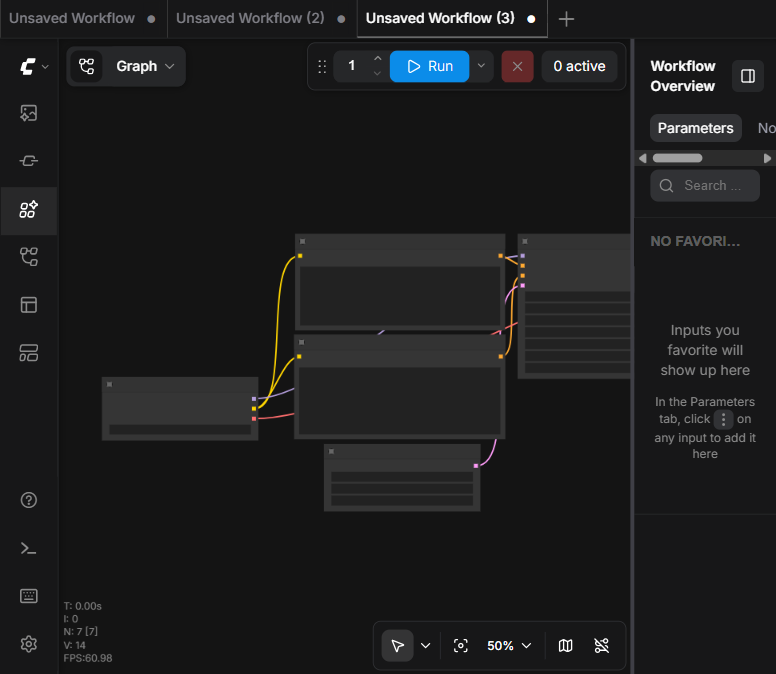
lanna_turbo graph on the canvas. The blue Run button (top) is real DOM; the nodes are canvas — which is why we drive them through window.app.画布上已加载的 lanna_turbo 节点图。顶部蓝色的 Run 按钮是真正的 DOM;节点是画布——这正是我们要通过 window.app 来驱动它们的原因。Load a saved workflow instantly立即加载已保存的工作流
Fetch a workflow from user/default/workflows/ and load it — this builds the entire node graph in one call, no clicking:从 user/default/workflows/ 取一个工作流并加载——一次调用就能构建出整张节点图,无需点击:
// load lanna_turbo.json straight into the canvas
const data = await (await fetch('/api/userdata/workflows%2Flanna_turbo.json')).json();
await app.loadGraphData(data);   // the same fn the sidebar uses
Create a node from scratch从零创建一个节点
Build a graph programmatically with LiteGraph, then add nodes to app.graph:用 LiteGraph 以编程方式构建节点图,然后把节点加到 app.graph:
const node = LiteGraph.createNode('CheckpointLoaderSimple');
app.graph.add(node);
node.pos = [50, 50];           // place it on the canvas
app.graph.setDirtyCanvas(true);   // force a redraw
Set a widget — e.g. choose the model设置控件——例如选择模型
const ck = app.graph._nodes.find(n => n.type === 'CheckpointLoaderSimple');
ck.widgets.find(w => w.name === 'ckpt_name').value = 'sd_turbo.safetensors';
Queue a generation & read the graph back提交一次生成,并读回节点图
await app.queuePrompt(0, 1);    // (front-of-queue flag, batch count) — same as the Run button

const wf = app.graph.serialize();   // current graph as workflow JSON (save/inspect it)
Worked example — load → prompt → run → fetch the image完整示例——加载 → 提示词 → 运行 → 取回图片
Paste this whole block into the console. It loads lanna_turbo, swaps in a new prompt and the fast SD-Turbo model, queues it, waits for the save, then opens the result in a new tab:把整段代码粘贴进控制台。它会加载 lanna_turbo,替换成新的提示词和快速的 SD-Turbo 模型,提交生成,等待保存,然后在新标签页中打开结果:
// 1 — load a saved workflow into the canvas
const wf = await (await fetch('/api/userdata/workflows%2Flanna_turbo.json')).json();
await app.loadGraphData(wf);

// 2 — edit it live: node 6 = positive prompt, node 4 = checkpoint (per lanna_turbo)
app.graph.getNodeById(6).widgets[0].value = 'misty Doi Suthep temple at dawn, anime style';
app.graph.getNodeById(4).widgets[0].value = 'sd_turbo.safetensors';

// 3 — convert the live graph to an API prompt and queue it
const { output } = await app.graphToPrompt();
const { prompt_id } = await (await fetch('/prompt', {
  method: 'POST', headers: { 'Content-Type': 'application/json' },
  body: JSON.stringify({ prompt: output })
})).json();

// 4 — poll until the image is saved, then open it
let img;
while (!img) {
  await new Promise(r => setTimeout(r, 1000));
  const h = await (await fetch(`/history/${prompt_id}`)).json();
  img = Object.values(h[prompt_id]?.outputs || {}).flatMap(o => o.images || [])[0];
}
window.open(`/view?filename=${img.filename}&subfolder=${img.subfolder}&type=${img.type}`);
console.log('saved:', img.filename);
app.graph._nodes — a model the combo can't resolve silently reverts to a template default.对于画布类应用(ComfyUI、Figma、地图编辑器),应当使用应用自带的 JS API,只点击画布周围的界面外壳。加载一个预先做好的工作流只是一次确定性的调用;手工重现则要 30 多次脆弱的点击。加载后务必用 app.graph._nodes 做一次检查——下拉框无法解析的模型会悄悄回退到模板默认值。
?Which one should I use?我该用哪一种?
| A — Mounted folderA — 挂载目录 | B — DockerfileB — Dockerfile | |
|---|---|---|
| Rebuild needed?需要重建吗? | No否 | Yes, on every change是,每次变动都要 |
| Image size镜像大小 | Stays small保持精简 | Grows with each model随每个模型增大 |
| Portable to another box?可移植到别的机器吗? | No — models stay on this host否——模型留在本机 | Yes — travels with the image是——随镜像一起带走 |
| Survives container removal?容器删除后还在吗? | Yes — file is on host disk在——文件在宿主机磁盘上 | Yes — baked into image在——已打包进镜像 |
| Speed to try a model试用一个模型的速度 | Seconds (download + refresh)数秒(下载 + 刷新) | Minutes (rebuild)数分钟(重建) |
| Best for最适合 | Experimenting, daily use试验、日常使用 | Shipping a fixed, reproducible stack交付固定、可复现的环境 |