🧩 The big picture in one breath一口气看懂全局
Everything ComfyUI does is described by a workflow: a chain of little boxes (nodes) connected by wires, where each node does one job and passes its result down the line. A workflow is also just a small JSON text file — you can save it, share it, and load someone else's. Today you'll read a real one, run it, and edit it. The example: image-to-video — give the AI one cartoon still plus a sentence describing the motion, and it dreams up the in-between frames. One still in 🐱, two seconds of charm out 🎬.
ComfyUI 做的每一件事都由一个工作流描述:一串用线连起来的小盒子(节点),每个节点干一件事,把结果传给下一个。工作流同时也只是一个小小的 JSON 文本文件——可以保存、分享,也可以加载别人的。今天你将读懂一个真实的工作流、运行它、修改它。例子是图生视频:给 AI 一张卡通静图加一句描述动作的话,它就梦出中间的所有帧。一张静图进去 🐱,两秒钟的可爱出来 🎬。
1 A workflow is a recipe (again!)工作流是一张配方卡(又来了!)
If you did the Dockerfile lesson, this will feel familiar: a Dockerfile is a recipe for packing software boxes, and a ComfyUI workflow is a recipe for making art. Same superpower, different kitchen:
如果你学过 Dockerfile 课程,这里会似曾相识:Dockerfile 是打包软件盒子的配方,ComfyUI 工作流是创作艺术的配方。同样的超能力,不同的厨房:
| Dockerfile | ComfyUI workflow | |
|---|---|---|
| The recipe | 7 lines of text | a graph of nodes (saved as JSON) |
| One step | an instruction (COPY, RUN…) | a node (Load, Encode, Sample…) |
| Order matters because… | each layer builds on the last | each wire feeds the next node |
| Re-running is fast because… | unchanged layers are CACHED | unchanged nodes are cached too! |
| Share it by… | pushing to Docker Hub | sending one little JSON file |
| Dockerfile | ComfyUI 工作流 | |
|---|---|---|
| 配方本体 | 7 行文字 | 一张节点图(存成 JSON) |
| 一个步骤 | 一条指令(COPY、RUN……) | 一个节点(加载、编码、采样……) |
| 顺序重要,因为…… | 每一层叠在上一层之上 | 每根线喂给下一个节点 |
| 重跑很快,因为…… | 没变的层直接 CACHED | 没变的节点同样有缓存! |
| 分享方式 | 推到 Docker Hub | 发一个小小的 JSON 文件 |
🏭 Think of it like…把它想象成……
A factory assembly line you design yourself. Raw materials enter on the left (a model, your words, a picture), each station transforms what rolls past, and the finished product drops out on the right. The genius part: you can re-arrange the stations, swap one machine for another, and the factory still runs. That's why ComfyUI is loved by professionals — it's not one fixed app, it's a factory construction kit.
一条你自己设计的工厂流水线。原料从左边进来(模型、你的文字、一张图片),每个工位加工经过的东西,成品从右边掉出来。妙就妙在:你可以重新排列工位、把一台机器换成另一台,工厂照样运转。这就是专业人士钟爱 ComfyUI 的原因——它不是一个固定的应用,而是一套工厂搭建套件。
We're using the same ComfyUI you met in Part 1 — these screenshots happen to come from a small GPU server running the heavier video models, but the canvas, the nodes and every idea below are identical on your machine.
我们用的就是你在第一部分认识的那个 ComfyUI——这些截图恰好来自一台跑着较重视频模型的小型 GPU 服务器,但画布、节点和下面的每一个概念,在你的电脑上完全一样。
2 The empty studio空荡荡的工作室
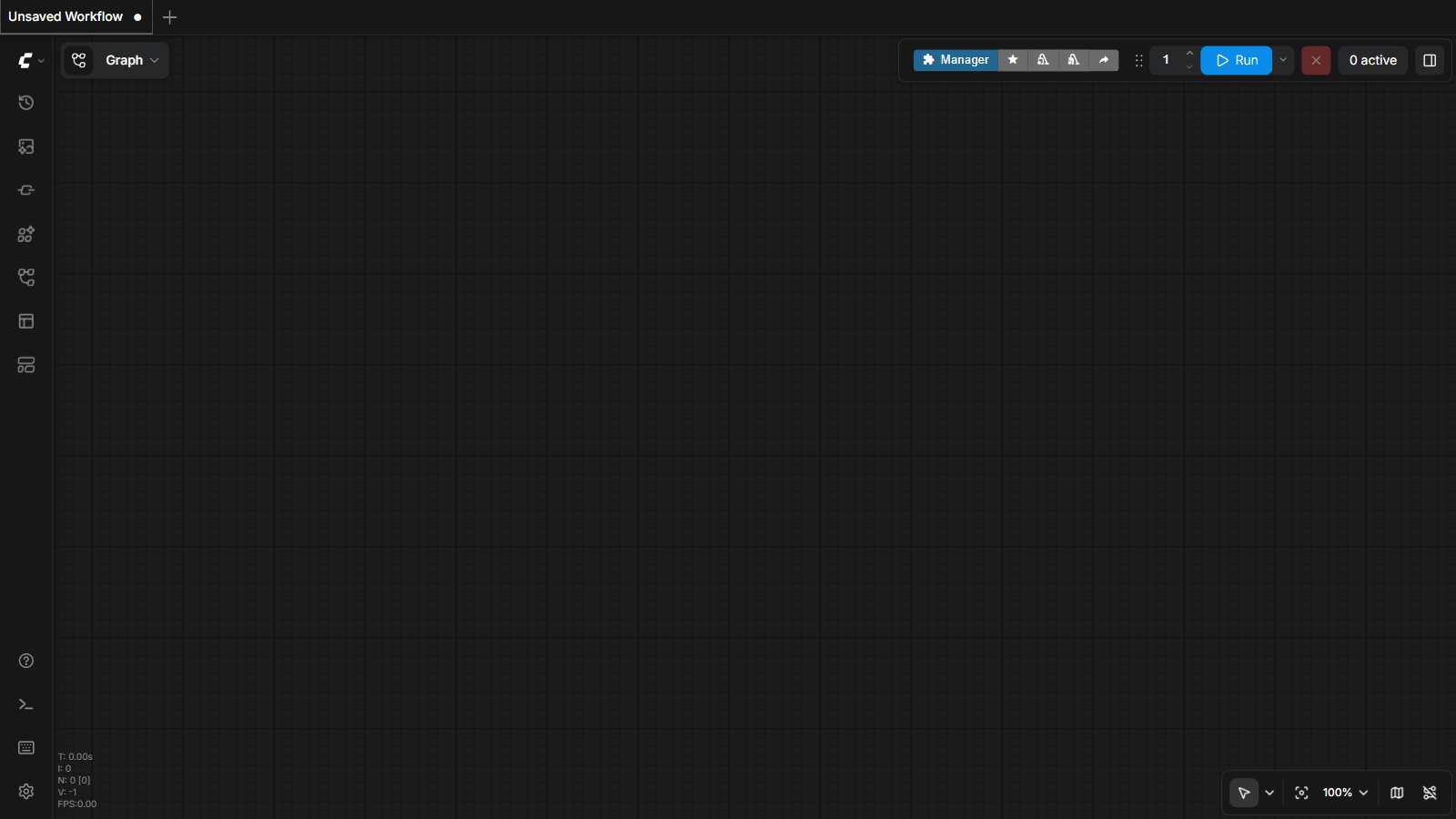
Start a new workflow (Workflow menu → New, or the + tab) and you get a blank dark canvas. Quick tour of what surrounds it:
新建一个工作流(Workflow 菜单 → New,或 + 标签页),你会得到一块空白的深色画布。先认认它周围都是什么:
- Pan: drag empty canvas (or hold Space). Zoom: scroll wheel.
- Fit everything on screen: press
.(the period key) — you'll use this constantly. - Undo works:
Ctrl/⌘ + Z, just like a document.
- 平移:拖动空白画布(或按住空格)。缩放:滚轮。
- 全图适配屏幕:按
.(句号键)——你会一直用它。 - 撤销有效:
Ctrl/⌘ + Z,和写文档一样。
3 Adding nodes: double-click and type添加节点:双击,然后打字
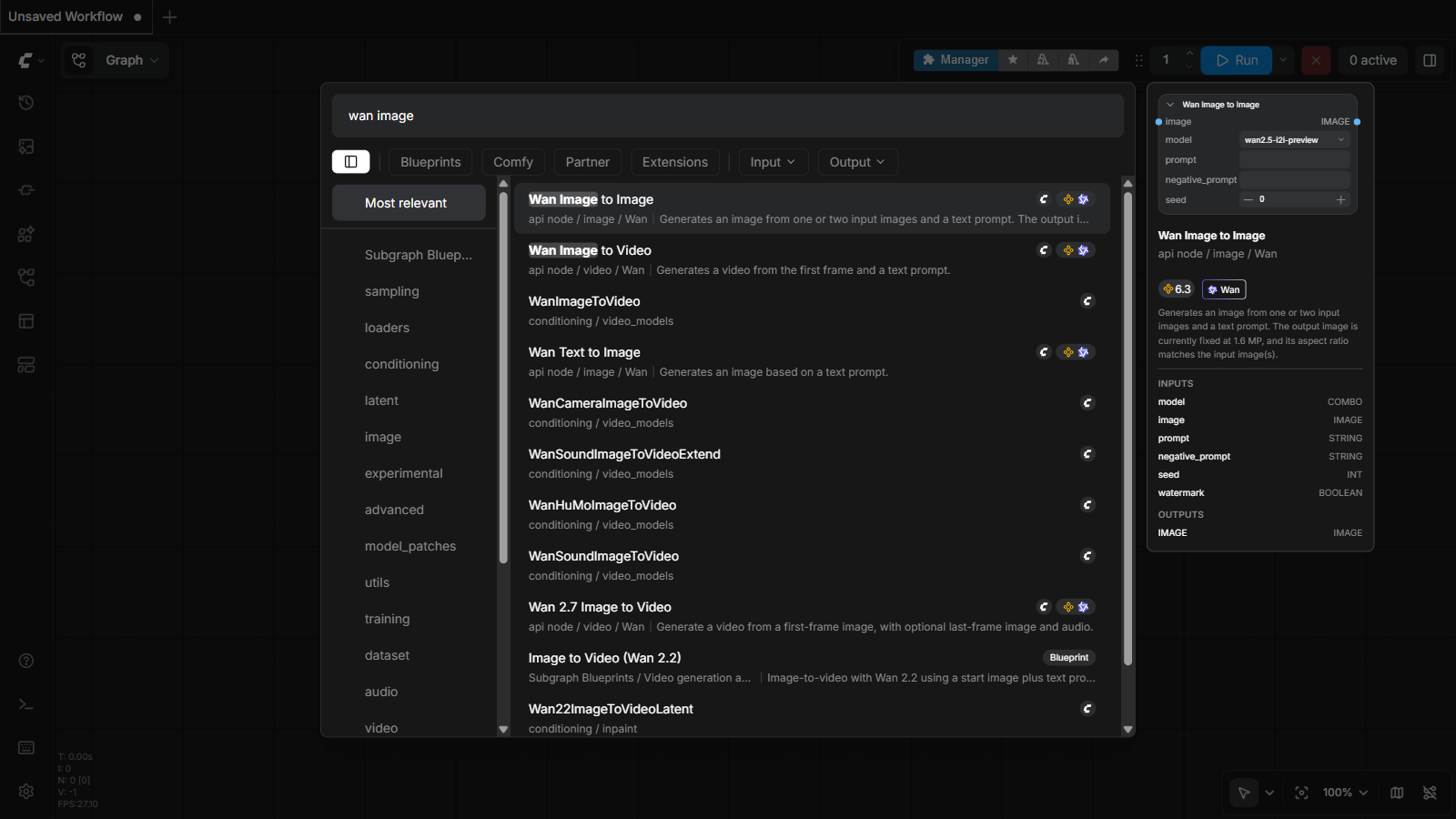
The fastest way to add any node: double-click empty canvas and start typing. The search understands partial words — type wan image and every node related to Wan (the video model family we'll use) appears, with a preview of its inputs on the right:
添加任何节点最快的方法:双击空白画布,直接打字。搜索支持部分匹配——输入 wan image,所有和 Wan(我们要用的视频模型家族)相关的节点都会出现,右侧还带输入输出预览:
💡 Wires only connect matching colors颜色匹配才能连线
Drag from a node's output dot to another node's input dot to connect them. Each dot has a color = a data type (purple MODEL, yellow CLIP, pink LATENT, blue IMAGE…). A yellow output snaps only into a yellow input — ComfyUI physically won't let you wire nonsense into a machine. Lego studs, not loose glue.
从一个节点的输出点拖到另一个节点的输入点就能连线。每个点的颜色 = 一种数据类型(紫色 MODEL、黄色 CLIP、粉色 LATENT、蓝色 IMAGE……)。黄色输出只能插进黄色输入——ComfyUI 在物理上就不允许你把胡话接进机器。是乐高积木,不是散装胶水。
4 The cartoon-motion workflow at a glance卡通动画工作流总览
Here is the complete workflow we'll run — 11 nodes that turn one still image into a video clip. Read it like a sentence, left to right:
这就是我们要运行的完整工作流——11 个节点,把一张静图变成一段视频。像读句子一样,从左到右读:
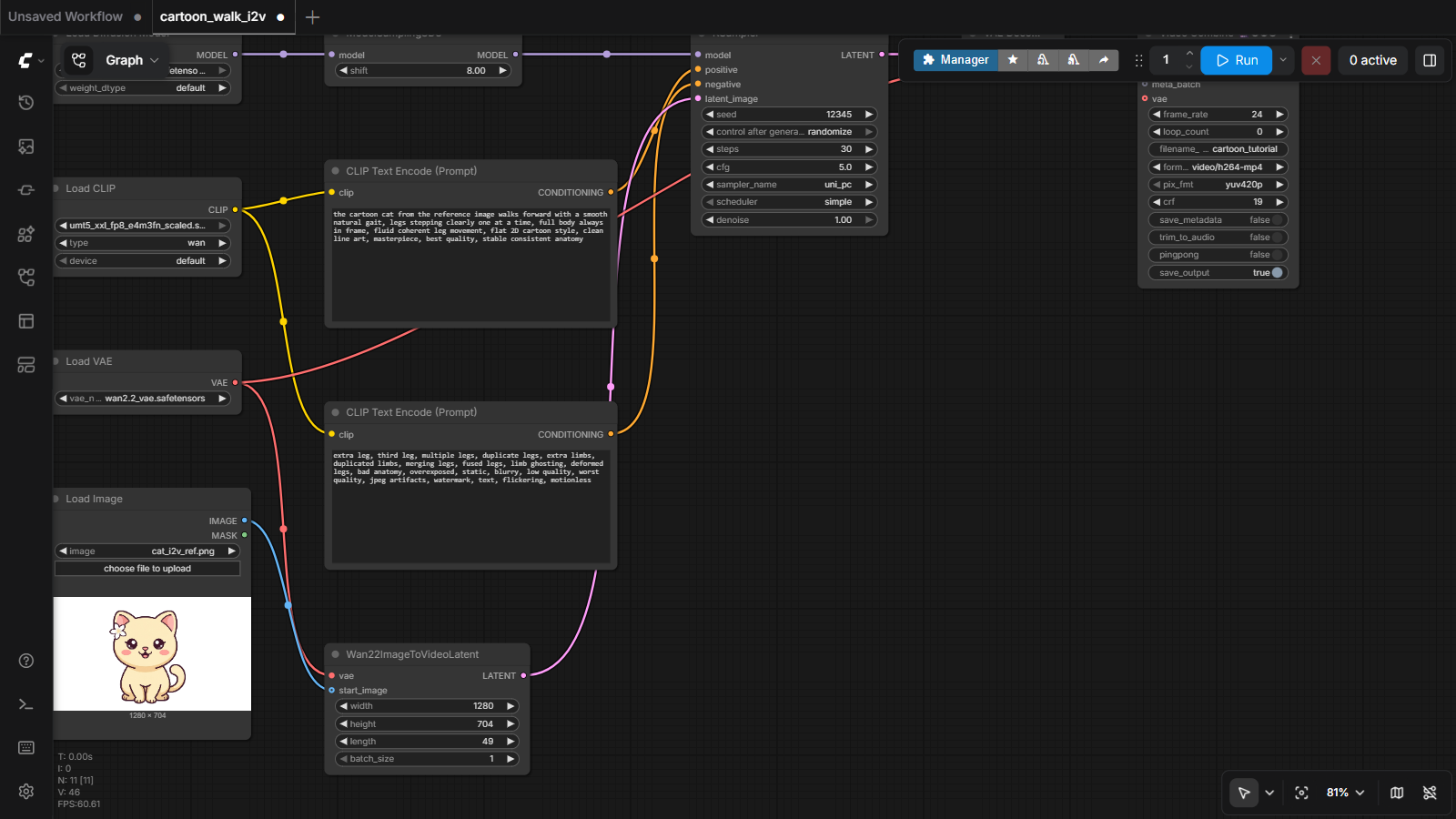
Eleven nodes sounds like a lot, but they form just four zones:
11 个节点听起来很多,但它们只构成四个区域:
| Zone | Nodes | Job |
|---|---|---|
| 📦 Load | UNET Loader, CLIP Loader, VAE Loader | open the AI's three brains: the video model (Wan 2.2), the text understander, and the image compressor |
| ✍️ Describe | 2 × CLIP Text Encode | turn your words into numbers — one node for what you want, one for what you don't |
| 🎬 Animate | Load Image, Wan22ImageToVideoLatent, KSampler | anchor frame 1 to your picture, then dream the next 48 frames |
| 💾 Save | VAE Decode, Video Combine | unpack the result into real frames and encode an MP4 |
| 区域 | 节点 | 职责 |
|---|---|---|
| 📦 加载 | UNET Loader, CLIP Loader, VAE Loader | 打开 AI 的三个大脑:视频模型(Wan 2.2)、文字理解器、图像压缩器 |
| ✍️ 描述 | 2 × CLIP Text Encode | 把你的话变成数字——一个节点装你想要的,一个装你不要的 |
| 🎬 动画 | Load Image, Wan22ImageToVideoLatent, KSampler | 把第 1 帧锚定到你的图片,然后梦出后面 48 帧 |
| 💾 保存 | VAE Decode, Video Combine | 把结果解包成真实的帧,并编码成 MP4 |
🗺️ Every workflow you'll ever meet has these zones你今后遇到的每个工作流都有这四个区域
Load → Describe → Generate → Save. The simple picture-maker from Part 1 had the same four zones with different machines. When a giant 50-node workflow from the internet scares you, find the KSampler first — that's the engine — then trace its wires backwards. The fog lifts fast.
加载 → 描述 → 生成 → 保存。第一部分那个简单的画图工作流也是这四个区域,只是机器不同。当网上某个 50 个节点的巨型工作流吓到你时,先找 KSampler——那是发动机——再顺着它的线往回追。迷雾很快就散。
5 The magic node: anchoring frame 1 to your cartoon魔法节点:把第 1 帧锚定到你的卡通
One node makes this image-to-video instead of text-to-video: Wan22ImageToVideoLatent. Your picture goes in as start_image — and becomes the literal first frame of the video. Everything the AI dreams must flow out of that frame, so your character's design survives.
有一个节点让这一切变成图生视频而不是文生视频:Wan22ImageToVideoLatent。你的图片作为 start_image 进去——成为视频名副其实的第一帧。AI 梦出的一切都必须从那一帧流出,所以你的角色设计得以保留。
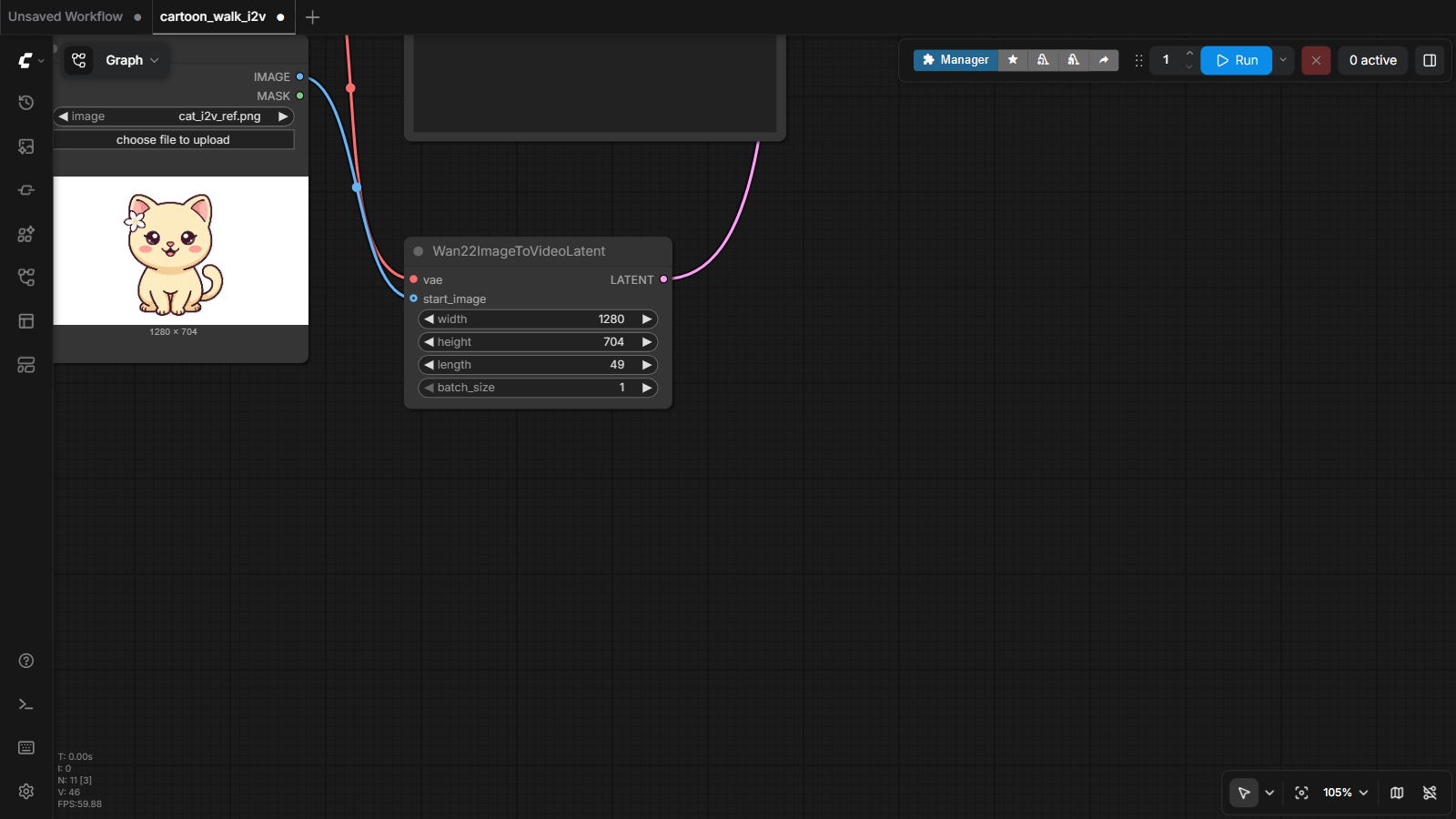
start_image. Settings: 1280 × 704 (this model's native size), length 49 frames — at 24 fps that's a 2-second clip. Want longer? 81 frames ≈ 3.4 s, 121 ≈ 5 s.i2v 锚点。猫的静图接进 start_image。设置:1280 × 704(这个模型的原生尺寸),length 49 帧——24 fps 下正好 2 秒。想更长?81 帧 ≈ 3.4 秒,121 ≈ 5 秒。⚠️ The 4n+1 rule4n+1 规则
Wan's frame count must be a multiple of 4, plus 1: 49 ✓, 81 ✓, 121 ✓ — but 50 ✗ or 100 ✗ will error. It's a quirk of how the model packs frames internally. Every model family has one or two rules like this; the error message will tell you when you trip on one.
Wan 的帧数必须是 4 的倍数加 1:49 ✓、81 ✓、121 ✓——而 50 ✗、100 ✗ 会报错。这是模型内部打包帧的方式带来的怪癖。每个模型家族都有一两条这样的规则;踩到时,错误信息会告诉你。
6 Using it: press Run and watch the line light up使用它:按 Run,看流水线亮起来
Press the blue Run button. Your workflow joins the queue, and ComfyUI executes node by node — each one highlights green as it works, and the top bar shows total progress:
按下蓝色 Run 按钮。你的工作流加入队列,ComfyUI 逐个节点执行——正在干活的节点亮绿色,顶栏显示总进度:
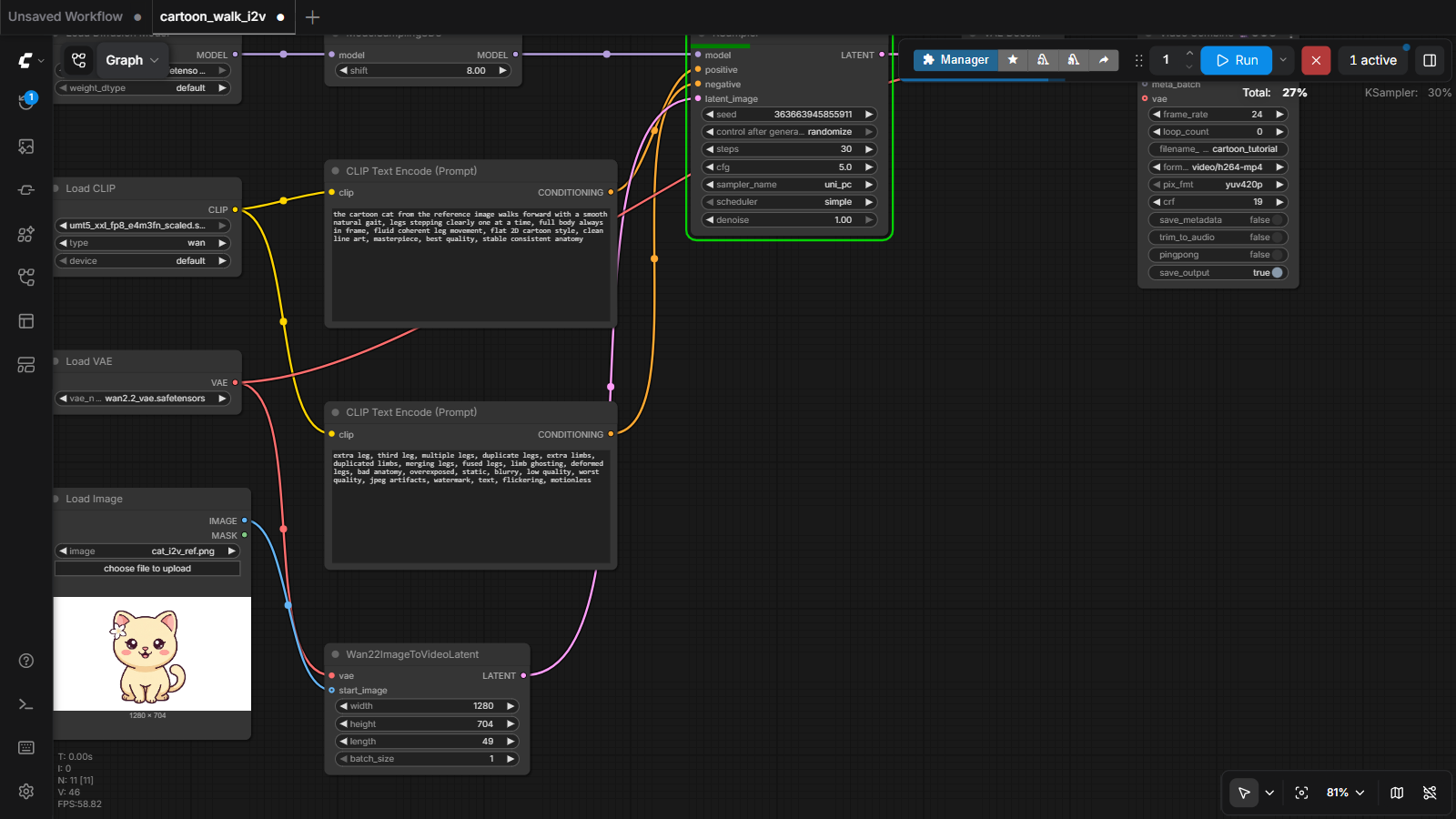
- You can keep editing the canvas while it runs — the queue took a snapshot of your graph.
- Queue several runs with different seeds, walk away, come back to a litter of videos.
- The X button next to Run cancels the current job.
- 运行时你可以继续编辑画布——队列已经对你的图拍了快照。
- 用不同的种子排队好几个任务,去干别的,回来收获一窝视频。
- Run 旁边的 X 按钮取消当前任务。
7 The payoff: paws on the heart收获:爪子放在心口
When the last node finishes, the Video Combine node grows a little player showing your clip, and the MP4 lands in ComfyUI's output/ folder:
最后一个节点完成时,Video Combine 节点会长出一个小播放器显示你的片段,MP4 落进 ComfyUI 的 output/ 文件夹:
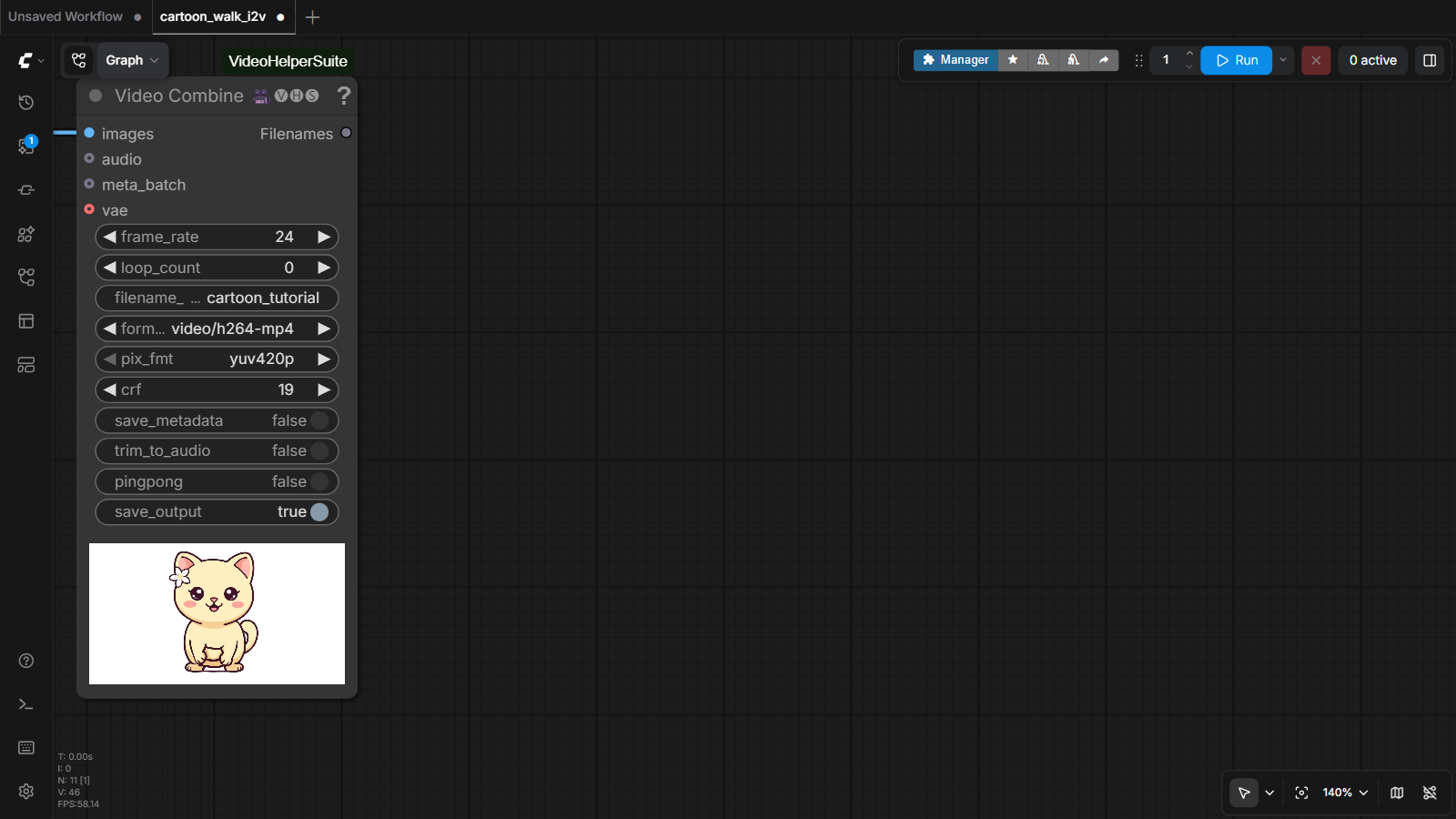
frame_rate 24 (Wan's native speed), format h264-mp4 and pix_fmt yuv420p — that pixel format is what makes the file play on phones and in chat apps, not just on your PC.运行结束后的输出节点。值得记住:frame_rate 24(Wan 的原生速度)、format h264-mp4 和 pix_fmt yuv420p——正是这个像素格式让文件能在手机和聊天软件里播放,而不是只能在你的电脑上。And here is the real before → after from this exact session — one still picture in, and out comes a cat who stands up, presses her paws to her heart and beams at you:
这就是本次操作的真实前后对比——一张静图进去,出来一只站起来、把爪子贴在心口、对你灿烂微笑的猫:

💡 Why this beats text-to-video for cartoons做卡通,为什么图生视频比文生视频强
Ask a video model to invent a character from words alone and it redesigns her every time. With i2v, you control the character — draw or generate the perfect still first (any tool: pencil + scanner, the Part 1 workflow, anything), then this workflow only has to invent the motion. Design once, animate forever. This is exactly how our longer cartoon projects are made.
让视频模型仅凭文字凭空发明角色,它每次都会重新设计她。用 i2v,角色由你掌控——先用任何工具做出完美的静图(铅笔+扫描仪、第一部分的工作流,都行),这个工作流只需要发明动作。设计一次,动画无数次。我们更长的卡通项目就是这么做的。
8 Editing: where the craft lives修改:手艺所在
A downloaded workflow is a starting point — editing it is how you make it yours. The two places you'll edit most, side by side:
下载来的工作流只是起点——把它改成你的才是真本事。最常修改的两个地方,正好并排:
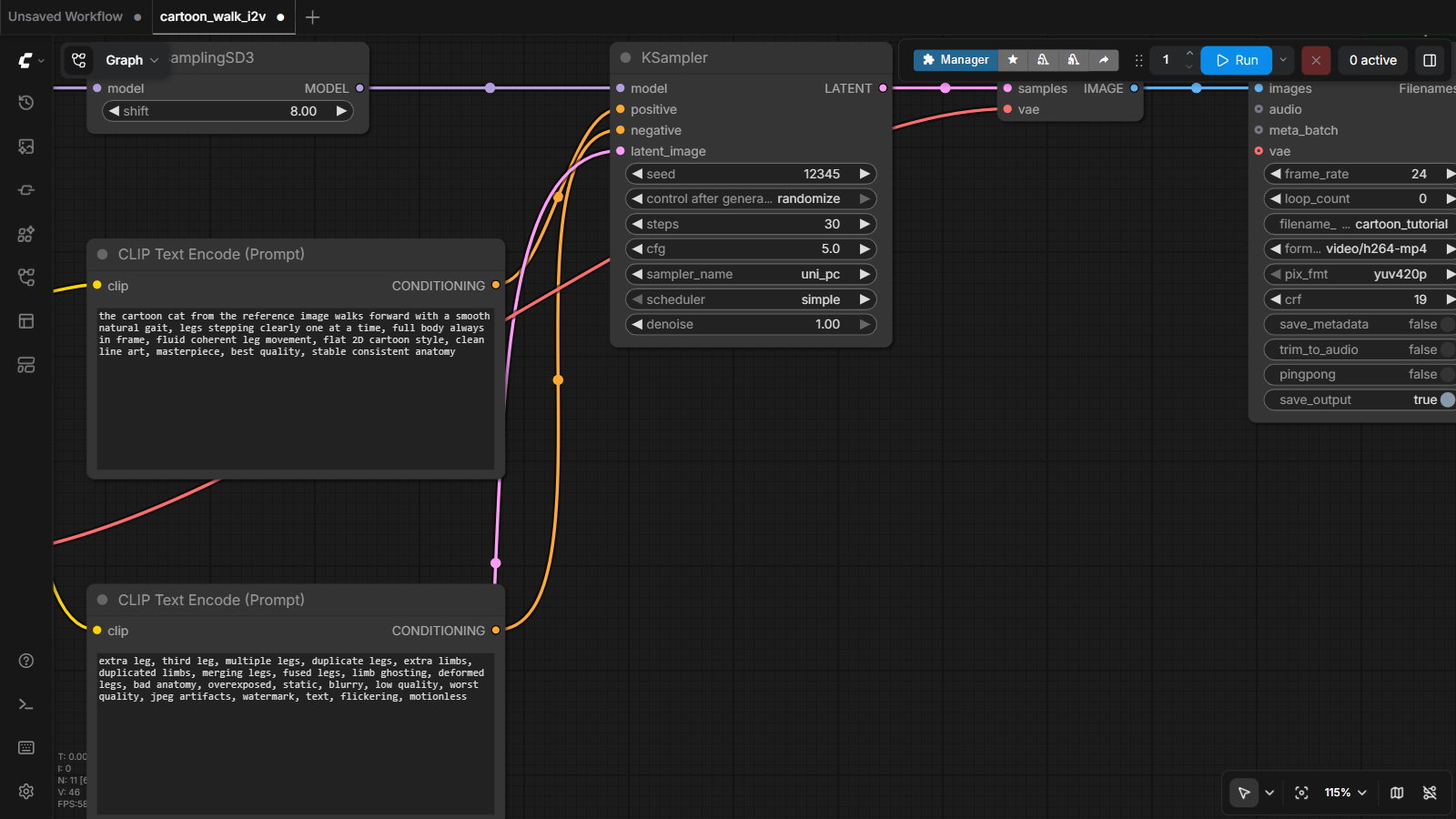
✍️ Edit 1 — the motion prompt修改 1——动作提示词
Our positive prompt asked her to "stand up and walk forward, hind legs clearly lifting off the ground…" — and the model had a warmer idea: she stood up, pressed her paws to her heart and smiled. We kept it (full story in Edit 2). Change the motion words and re-run: jumps with joy, waves at the camera, turns her head and blinks. Describe the motion, not the character — the character comes from your image.
我们的正向提示词让她"站起来向前走,后腿明显抬离地面……"——而模型有个更暖的主意:她站起来,把爪子贴在心口,笑了。我们留下了这个镜头(完整故事见修改 2)。换掉动作词再跑一次:开心地跳起来、对镜头挥手、转头眨眼。描述动作,别描述角色——角色来自你的图片。
🚫 Edit 2 — the negative prompt (two true stories)修改 2——负向提示词(两个真实故事)
The negative box has oddly specific lines like extra leg, third leg, multiple legs… When we first ran walking clips, the model kept growing a ghostly third leg mid-stride. Naming the exact failure in the negative prompt fixed it. That's what negative prompts are for: when the model makes the same mistake twice, describe the mistake and it learns to steer away.
负向框里有些特别具体的词,比如 extra leg, third leg, multiple legs…(多余的腿、第三条腿……)。我们最早跑走路视频时,模型总在迈步中途长出一条幽灵般的第三条腿。把这个失败原原本本写进负向提示词,就治好了。负向提示词就是干这个的:模型把同一个错犯了两次,就把错误描述出来,它会学着绕开。
And the clip in step 7? Take 1 used a plain walking prompt — the cat just sat there paddling her front paws, back legs never leaving the ground. So take 2 added "stands up" to the prompt and banned the failure in the negative ("legs glued to the ground, motionless back legs"). She stood up alright — then, instead of walking, she put her paws on her heart and beamed. It was better than what we'd asked for, so it became the goal. Two lessons in one: name the failure you saw, and when the model improvises a better take than your plan — you're the director. Keep it.
那第 7 步的片段呢?第一镜用了普通的走路提示词——猫坐在原地划前爪,后腿根本不离地。于是第二镜在提示词里加上"站起来",并把看到的失败禁进负向("腿粘在地上、后腿不动")。她确实站起来了——然后没有走路,而是把爪子放在心口,笑容满面。这比我们要求的更好,于是它成了目标。一举两课:把你看到的失败说出名字;当模型即兴发挥出比你计划更好的镜头——你是导演,留下它。
🎛️ Edit 3 — the KSampler dials修改 3——KSampler 的旋钮
| Setting | Ours | What turning it does |
|---|---|---|
seed | 22222 | the shuffle of the deck — same seed = same clip, new seed = new take on the same prompt |
steps | 30 | thinking time per frame. 20 is faster but limbs track less cleanly in motion; 30 was our sweet spot |
cfg | 5.0 | how strictly to obey the prompt. Higher = obedient but stiff; lower = creative but drifts |
length (on the latent node) | 49 | clip duration — remember 4n+1, and longer = proportionally longer waits |
| 设置 | 我们的值 | 转动它会怎样 |
|---|---|---|
seed | 22222 | 洗牌的方式——同种子 = 同片段,新种子 = 同提示词的新演绎 |
steps | 30 | 每帧的思考时间。20 更快,但运动中四肢跟踪不够干净;30 是我们的甜点位 |
cfg | 5.0 | 服从提示词的严格程度。更高 = 听话但僵硬;更低 = 有创意但容易跑偏 |
length(在潜变量节点上) | 49 | 片段时长——记住 4n+1,而且更长 = 等待成比例变长 |
⚡ ComfyUI caches like Docker doesComfyUI 的缓存和 Docker 一个路数
Re-run without changing anything: instant — every node's result was cached. Change only the prompt: the loaders don't reload, only nodes downstream of your edit recompute. Sound familiar? It's the Dockerfile layer-cache idea wearing a different hat. Engineers reuse good ideas everywhere.
什么都不改直接重跑:瞬间完成——每个节点的结果都缓存了。只改提示词:加载器不会重新加载,只有你修改处下游的节点重新计算。耳熟吗?这就是 Dockerfile 层缓存的思想换了顶帽子。工程师走到哪儿都在复用好点子。
9 Saving & sharing workflows保存与分享工作流
Your workflow deserves to survive. The workflow-actions menu (click the workflow name / Graph button) has everything:
你的工作流值得活下去。工作流操作菜单(点工作流名字 / Graph 按钮)里什么都有:
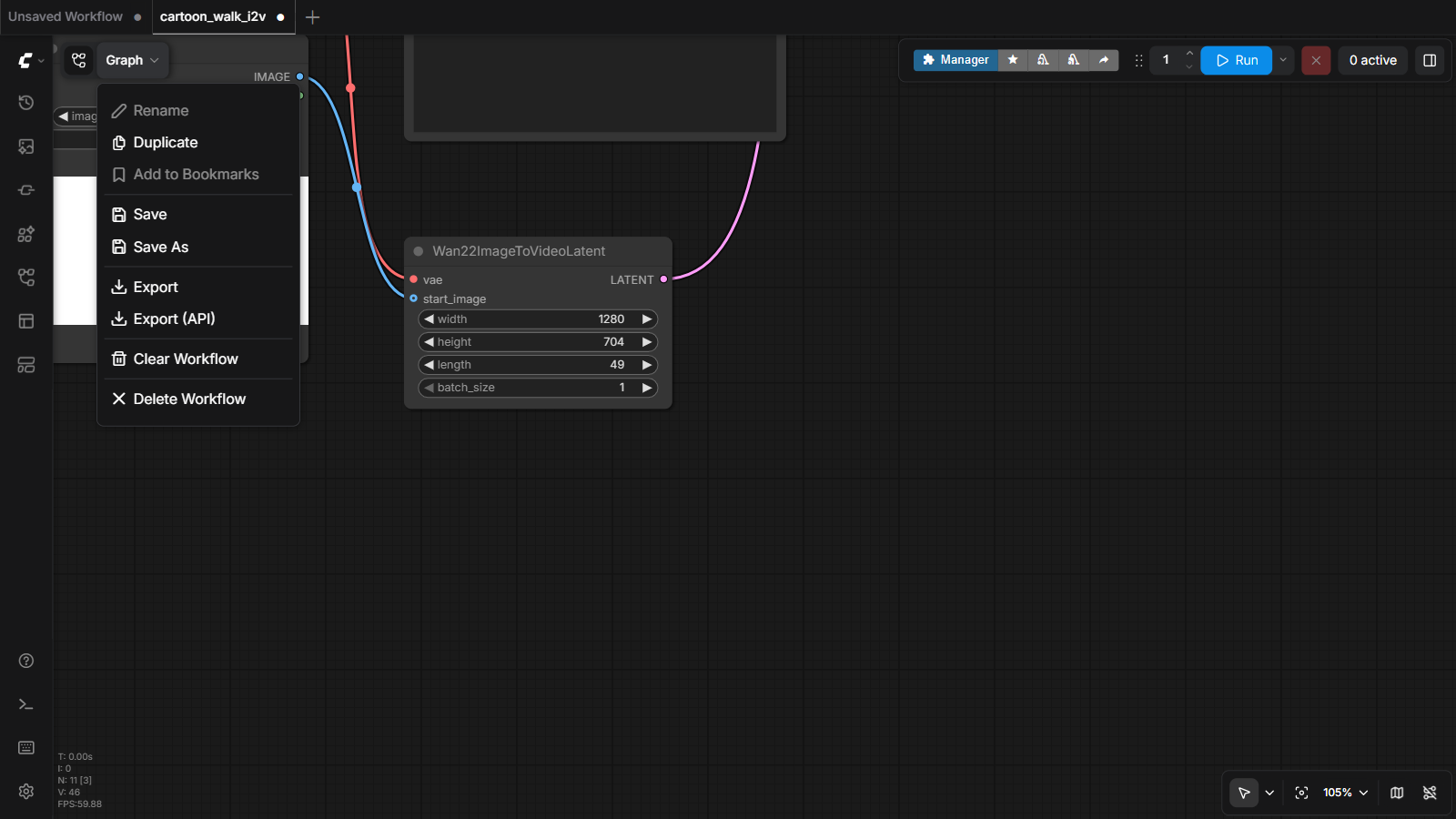
- Loading is drag-and-drop: drop a workflow JSON anywhere on the canvas and the whole factory rebuilds itself.
- Hidden superpower: images that ComfyUI saves carry their workflow inside the PNG. Drag a ComfyUI-made picture onto the canvas → the exact workflow that made it appears. Every output is its own recipe card.
- Sites like comfyworkflows.com and the built-in Templates browser are full of workflows to study — load one, find the KSampler, trace backwards.
- 加载就是拖放:把工作流 JSON 拖到画布上任何位置,整座工厂自己重建。
- 隐藏超能力:ComfyUI 保存的图片把工作流藏在 PNG 内部。把一张 ComfyUI 做的图拖上画布 → 做出它的那个工作流原样出现。每件作品都是自己的配方卡。
- comfyworkflows.com 这类网站和内置的 Templates 浏览器里全是可以研究的工作流——加载一个,找到 KSampler,往回追。
📋 Want this exact workflow? Copy the JSON📋 想要这个工作流?复制 JSON
This is the exact recipe behind the video in step 7 — same prompts, same seed. Save it as happy_cat.json, drag it onto your ComfyUI canvas, and swap the Load Image for your own character. (It needs the Wan 2.2 5B model files and a GPU machine — on the Part 1 Mac setup, practice the same ideas with the SVD video workflow instead.)
这就是第 7 步那段视频背后的精确配方——同样的提示词,同样的种子。存成 happy_cat.json,拖到你的 ComfyUI 画布上,再把 Load Image 换成你自己的角色。(需要 Wan 2.2 5B 模型文件和一台 GPU 机器——在第一部分的 Mac 环境里,请改用 SVD 视频工作流练习同样的思想。)
{
  "1": {"class_type":"UNETLoader","inputs":{"unet_name":"wan2.2_ti2v_5B_fp16.safetensors","weight_dtype":"default"}},
  "2": {"class_type":"ModelSamplingSD3","inputs":{"model":["1",0],"shift":8.0}},
  "3": {"class_type":"CLIPLoader","inputs":{"clip_name":"umt5_xxl_fp8_e4m3fn_scaled.safetensors","type":"wan"}},
  "4": {"class_type":"VAELoader","inputs":{"vae_name":"wan2.2_vae.safetensors"}},
  "5": {"class_type":"CLIPTextEncode","inputs":{"clip":["3",0],"text":"the cartoon cat stands up and walks forward on all four legs, hind legs clearly lifting off the ground and stepping one at a time, a complete four-legged walking cycle, paws visibly rising and falling, full body always in frame, fluid coherent leg movement, flat 2D cartoon style, clean line art, masterpiece, best quality, stable consistent anatomy"}},
  "6": {"class_type":"CLIPTextEncode","inputs":{"clip":["3",0],"text":"legs glued to the ground, motionless back legs, static hind legs, sliding without stepping, extra leg, third leg, multiple legs, duplicate legs, extra limbs, duplicated limbs, merging legs, fused legs, limb ghosting, deformed legs, bad anatomy, overexposed, static, blurry, low quality, worst quality, jpeg artifacts, watermark, text, flickering, motionless"}},
  "7": {"class_type":"LoadImage","inputs":{"image":"your_character.png"}},
  "8": {"class_type":"Wan22ImageToVideoLatent","inputs":{"vae":["4",0],"width":1280,"height":704,"length":49,"batch_size":1,"start_image":["7",0]}},
  "9": {"class_type":"KSampler","inputs":{"model":["2",0],"positive":["5",0],"negative":["6",0],"latent_image":["8",0],"seed":22222,"steps":30,"cfg":5.0,"sampler_name":"uni_pc","scheduler":"simple","denoise":1.0}},
  "10": {"class_type":"VAEDecode","inputs":{"samples":["9",0],"vae":["4",0]}},
  "11": {"class_type":"VHS_VideoCombine","inputs":{"images":["10",0],"frame_rate":24,"loop_count":0,"filename_prefix":"happy_cat","format":"video/h264-mp4","pix_fmt":"yuv420p","crf":19,"save_metadata":false,"pingpong":false,"save_output":true}}
}
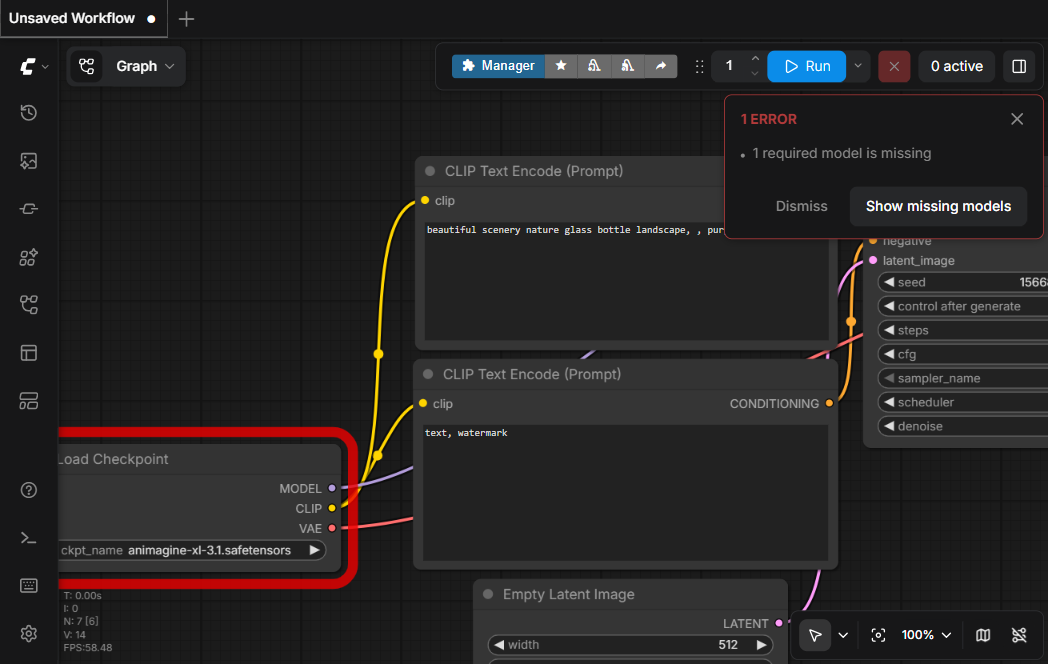
10 When things go wrong出问题的时候
Everyone hits these. Here's the most common one, caught in the wild:
人人都会遇到这些。最常见的一个,现场抓拍:
🩹 Quick fixes for the rest其余问题的快速处理
- Red node + "node type not found" — the workflow uses a custom node you haven't installed. The Manager button can find and install it.
- Error mentioning frame length — you broke the 4n+1 rule (step 5). Use 49, 81 or 121.
- It's been "running" for ages — video is heavy; 5 minutes for 2 seconds is normal on a good GPU. Check the progress % — moving means working.
- Out-of-memory error — lower width/height or frame count. Video eats VRAM fast: every extra frame is another whole image held in memory.
- The motion looks wrong — that's not an error, that's iteration: new seed, or sharpen the motion prompt, or add the failure to the negative prompt (the third-leg trick). Re-rolling is part of the craft.
- 红色节点 + "node type not found"——工作流用了你没安装的自定义节点。Manager 按钮能找到并安装它。
- 报错提到帧数——你违反了 4n+1 规则(第 5 步)。用 49、81 或 121。
- "跑了很久还在跑"——视频很重;好 GPU 上 2 秒视频跑 5 分钟很正常。看进度百分比——在动就是在干活。
- 内存不足报错——调低宽高或帧数。视频吃显存很快:每多一帧,内存里就多一整张图。
- 动作不对劲——那不是报错,那是迭代:换种子,或把动作提示词写得更锋利,或把失败写进负向提示词(第三条腿那一招)。重摇骰子本来就是手艺的一部分。
✅ Your workflow-builder checklist工作流建造者清单
Tick each box as you go. Your progress saves in this browser automatically.完成一项勾一项,进度自动保存在这个浏览器里。
Saved on this device only. Nothing is sent anywhere — just like your art.仅保存在本设备。不会上传任何内容——和你的作品一样。