🎯 Your Mission
Turn a still character into a talking one. There's a path for every character and every machine:
1. AI lip-sync (Wav2Lip) · 2. sharpen it (GFPGAN) · 3. the on-style mouth-transplant trick · 4. draw the mouth and tie it to the sound (for shapes-and-lines characters). 🎬
🎤 Level Up: Make a Character TALK
You've drawn a character — now give it a voice. There's a free AI tool called Wav2Lip that does one magical thing: you hand it a picture of a face and a sound file of someone talking, and it repaints the mouth in every frame so the picture speaks your words. The sound and the lips can't drift apart, because the mouth is drawn from the sound.
Movies use a trick here, and you'll use it too: when somebody talks, the camera cuts to a close-up. So you need one more picture — a storyteller for your show, with their face filling the frame. Ours introduces the royal cats:
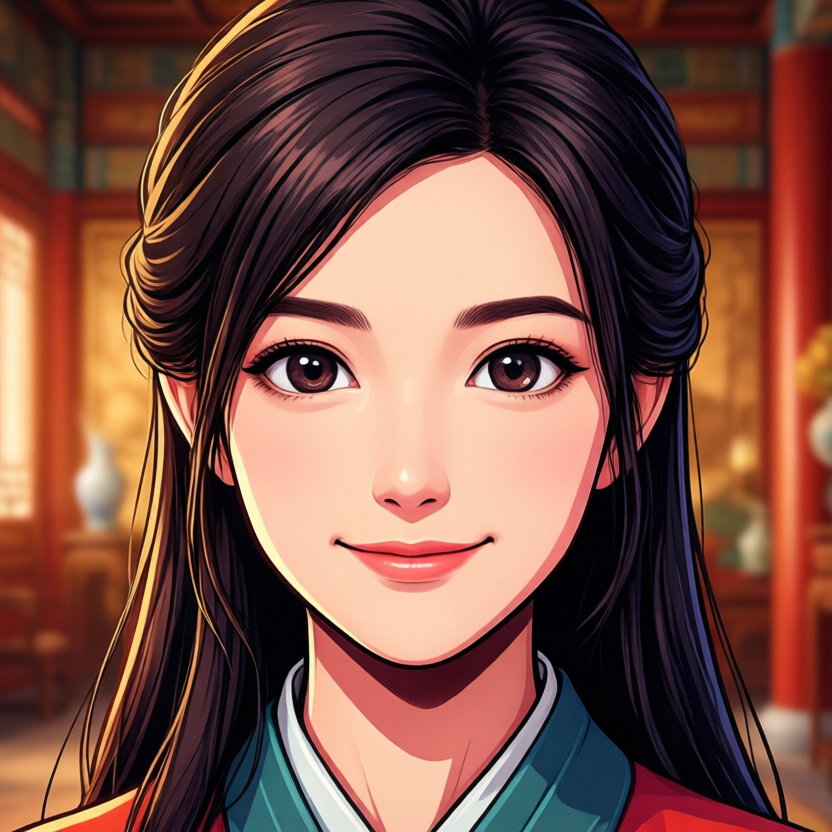
The picture you feed in — close-up, facing the camera, mouth closed.
▶ The video that comes out — 🔊 turn the sound on! Same picture, now talking. (Look close: the mouth is a touch blurry — the polish step below fixes that.)
What your close-up picture needs
- A person-style face — drawn, painted, or AI-made, any art style. (Not an animal — see the next card for why!)
- Close up — face and shoulders filling the frame, like a news reader. The bigger the face, the better the lips look.
- Facing the camera, mouth closed, on its own in the picture. Save it as
narrator.png.
The recipe — a voice, then the talking
First the voice. edge-tts is a free text-to-speech tool with hundreds of voices — no account, no key. (Macs also have a built-in one: try say "hello" in the Terminal — and say -o voice.aiff "your line" saves it to a file.)
- English (all 44 sounds): "The beige hue on the waters of the loch impressed all, including the French queen, before she heard that symphony again, just as young Arthur wanted."
- 中文 Mandarin (all four tones + a wide spread of sounds): "他去北京上学,每天乘坐绿色火车,认真学习中文,希望将来为社会做出贡献。"
Prefer one script that does the voice and the talking? Drop this in your Wav2Lip folder, change the LINE at the top, and run python3 talk.py:
pip3 install can grumble on a new computer — if it does, ask your AI helper (or a grown-up coder) to sort the install out. It also needs the free ffmpeg tool. It runs on a plain computer with no graphics card — a few-second clip just takes a tea-break instead of seconds. (We rendered ours on a home GPU box, where it takes about two seconds.)talk.mp4 — your storyteller says your line, lips moving with every word. Play it before your walk clip and you've got a show with an opening!The polish — why the face went soft, and the fix 🔍
Here's a secret about Wav2Lip: it doesn't repaint your whole big picture. It cuts out the face, shrinks it to a tiny 96×96-pixel patch, draws the new mouth in there, and pastes the patch back. Shrink-then-stretch is what makes the face look out of focus:
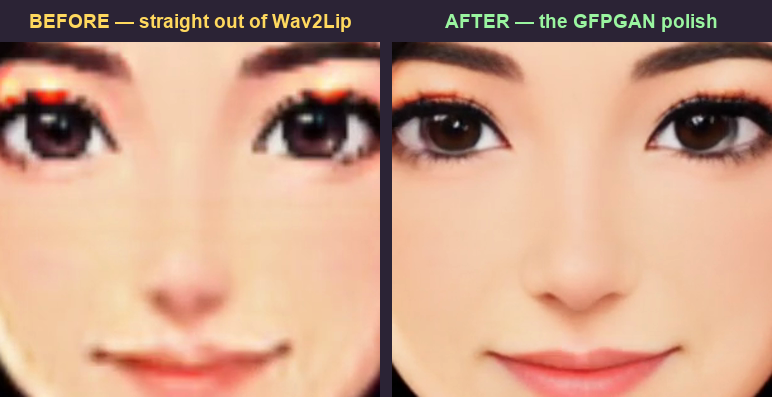
The same frame of our narrator, zoomed in — before and after the polish.
The cure is a second free AI tool: a face restorer called GFPGAN. It has studied millions of faces, so when you hand it a blurry one it knows what crisp eyes and lips should look like and redraws them — without moving anything, so your lip-sync stays perfect. A video is just pictures in a row, so the trick is:
- Pull the video apart into its frames (ffmpeg does this in one line).
- Fix every face — GFPGAN restores each frame, same size in, same size out.
- Put it back together with the original sound.
Or all three steps in one script — drop it in your GFPGAN folder and run python3 polish.py talk.mp4:
▶ The polished clip — same lips, same sync, now in focus.
realesr-animevideov3) on the same frames. It helped a little — but the face specialist won by a mile, because it only retouches the part it truly understands: the face. Picking the tool that was trained for your exact problem is half of AI. (Stuck on the install? Same advice as above — ask your AI helper.)🎭 Keep Your Style: the Mouth-Transplant Trick
Wav2Lip gives you a slightly soft mouth; GFPGAN sharpens it but in a more realistic style. Want it sharp AND exactly your art style? Borrow a real, on-style talking mouth from an AI text-to-video clip of the same character — then graft just the mouth into your scene. It's more hand-work, but the picture stays 100% yours.
Step 1 — make an on-style talking clip (image-to-video)
Feed your character picture to an image-to-video model (Wan 2.2, Kling, Runway, Veo…) with a prompt that asks it to talk to the camera. Crucially: ask it to keep the head still (so the mouth stays in one spot) and to run through every mouth shape — say the phonetic pangram from above. Here are prompts that work; the image you attach is your character:
PROMPT 1 — clear talking head
Using the attached image as the character, a head-and-shoulders shot of
her talking warmly to the camera. Natural mouth movements forming clear
speech, gentle eye-blinks and tiny head nods, eyebrows lifting on
emphasis. Hair, body and background stay still. Fixed camera, no zoom.
Keep the exact same art style, line work and colors as the image.

PROMPT 2 — full range of mouth shapes (best for harvesting)
The character from the reference image speaks to the camera, lips moving
through a full range of shapes: wide "ah", round "oo", closed "mmm",
toothy "ee", pursed "w". Calm and expressive, head perfectly centered and
steady so the mouth stays in one place. No camera movement. Consistent
cel-shaded style, unchanged background.

PROMPT 3 — gentle narrator
Close-up of the referenced character narrating a story: soft, varied
mouth motion, an occasional smile, slow natural blinks. The head does not
drift; only the face moves. Plain background unchanged, same colors and
outlines as the reference image.

NEGATIVE (if your tool has a negative box)
camera zoom, camera pan, big head movement, body turning, style change,
extra fingers, distorted face, text, watermark
▶ Our talking clip from Wan 2.2 (image-to-video), fed just the narrator picture + Prompt 2. The mouth runs through every shape, sharp and on-style, head locked. We don't use this as the final video — we mine it for mouth shapes.
Step 2 — harvest the mouth shapes (your "mouth library")
The clip isn't your animation — it's a box of mouth shapes. Split it into frames and pick a handful of clearly different mouths: closed, a wide "ah", a round "oh", a toothy "ee", a smile. Animators call these visemes — one mouth picture per sound.
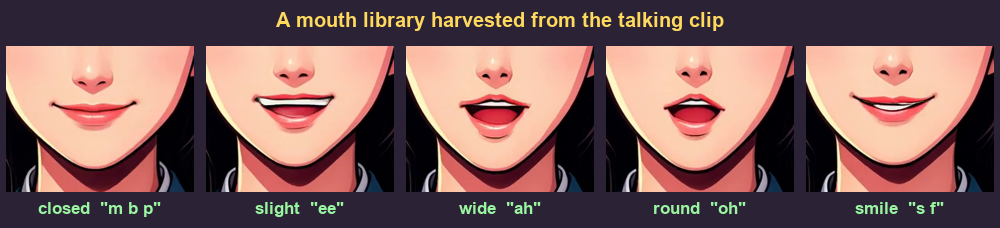
Five mouth shapes lifted straight from the frames of our Wan clip — that's a whole talking alphabet.
Step 3 — paste a mouth onto your picture
Now the transplant itself: take your still and drop the mouth shape you want over its mouth, softening the edges so there's no seam. Here's a closed-mouth still given an open "ah" mouth straight from the library:
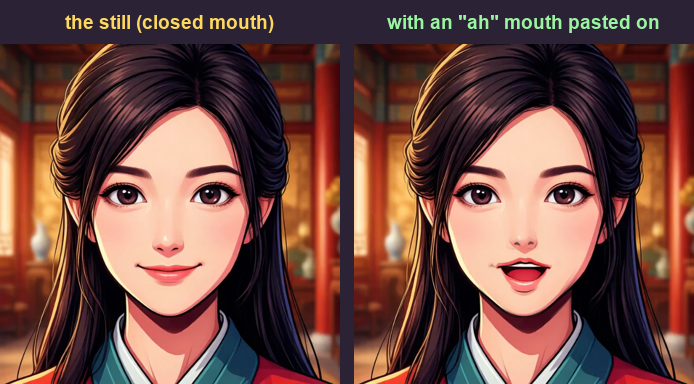
Left: the still. Right: the same drawing with an "ah" mouth pasted on — crisp, on-style, the seam feathered away.
- By hand — in any image editor (Preview, Photopea, GIMP, Photoshop): copy a mouth from your library, paste it over your picture's mouth, soften the edge. You see exactly what's happening.
- With a script — the feathered-paste engine does the blending. Point it at the whole talking clip to graft its mouth onto your still automatically, or use it to place single mouths yourself:
Step 4 — lip-sync: the right mouth for each sound
This is where it clicks — and where your voice finally makes sense. Play your voice.mp3 and, for each sound, drop in the matching mouth: lips closed on "m / b / p", wide on "ah", round on "oh / oo", smiling on "ee". Because you choose the mouth to fit the word, the lips and the voice agree — that's real lip-sync, exactly how hand-drawn cartoons have always done it with a mouth chart. (Remember the phonetic pangram up top? Say that and your library will already contain every shape you need.)
🙀 Why Can't the EMPEROR Talk?
We tried. Here's what happened when we gave Wav2Lip the emperor cat:
▶ Look closely at his chin — tiny human lips flicker in and out of the fur! 👄
First, Wav2Lip couldn't even find his face (Face not detected!). When we pointed at it by hand, it painted little blurry people-lips onto his fur — because that's all it knows how to draw.
Why? Wav2Lip learned from thousands of videos of people talking. An AI model only knows what's in its training data — show it something it has never seen, like a cat's muzzle, and it does its best… with human lips. 🫠
🐷 Flat Character? Just DRAW the Mouth
All those AI tricks are for a person-style face. But if your character is simple shapes and lines — like a Peppa-style piglet — you don't need any AI to make it talk. The mouth is just a shape, so you can draw it yourself in code. And here's the magic: tie how far it opens to how loud the voice is. Loud sound → wide-open mouth; quiet → closed. The lips follow the voice all on their own.
▶ 🔊 turn the sound on! Pip is just circles and lines — and his mouth was drawn by Python, opening exactly as loud as the voice. No AI, no GPU, no blur to fix.
How it listens to the sound 🎧
Sound is really just a wiggly line of numbers — big wiggles = loud, tiny wiggles = quiet. The script chops the voice into one little piece per video frame, measures how big the wiggles are in each piece (its loudness), and uses that single number to set how tall the mouth is drawn that frame:
loud = how big the sound wiggles are this frame     # 0.0 silent .. 1.0 loudest
mouth_height = MIN_OPEN + (MAX_OPEN - MIN_OPEN) * loud
# then just draw an ellipse that tall where the mouth goes
That's the whole secret. A pinch of smoothing stops the jaw chattering on every tiny bump, and a little tongue pops in when the mouth opens wide.
Make your own talk
- Draw your character with an empty mouth spot (save it as
character.png). - Make a voice with edge-tts, or record one →
voice.mp3. - Set the mouth's spot in the script's knobs, then run it:
🩹 If the Talking Looks Wrong
- "Face not detected!" from Wav2Lip — the face is too small, turned away, or not person-style. Use a bigger close-up that looks straight at the camera.
- A blurry mouth — that's the tiny 96×96 patch. Run GFPGAN (the polish step), or use the mouth-transplant trick.
- The mouth looks "off-model" after GFPGAN — it restyles toward realism. Switch to the mouth-library / transplant path to keep your exact style.
- Human lips on an animal 🙀 — Wav2Lip only knows people. Use a person-style narrator, or draw the mouth (geo_mouth.py) for a shapes-and-lines character.
- The pasted mouth lands on a cheek — the head moved in your i2v clip. Re-generate with "head perfectly still", or nudge the mouth box.
🛠️ Your Talking Toolkit
🚀 More Cartoon Magic
Start with a character that moves, or let AI draw and animate the whole thing: