▶ The finished cartoon — 🔊 unmute to hear it: a still drawn by FLUX.1, animated by Wan 2.2, chained into a longer shot (she walks, turns, and smiles), then given a voice, a soft music bed, and subtitles. Every step is on this page.▶ 成片——🔊 取消静音即可听到:先用 FLUX.1 画静帧,用 Wan 2.2 让它动起来,接成更长的一镜(她走过来、转身、微笑),再加上配音、轻柔的背景音乐和字幕。每一步本页都有。
🎨 One idea, two styles🎨 一个点子,两种风格
Here's the secret you'll prove on this page: the art style is just a sentence in your prompt. Same idea — a girl takes a few steps past a Thai temple at sunset — rendered two completely different ways. The left is soft watercolour; the right is the bold cel-anime clip you'll learn to make below.这一页要让你亲眼证明的秘密是:美术风格只是提示词里的一句话。同一个点子——一个女孩走过日落下的泰国寺庙——用两种完全不同的方式呈现。左边是柔和的水彩;右边就是你下面将学会制作的大胆赛璐璐动漫风。
🎨 20 animation styles to try🎨 20 种可以试的动画风格
The style is just a sentence in your prompt. Swap any phrase below into your image prompt (Step 2–3) and the whole look changes — then your video inherits it. Mix and match!风格只是提示词里的一句话。把下面任意一句换进你的图像提示词(第 2–3 步),整体观感就变了——视频也会跟着变。随便搭配!

bold cel-shaded anime, thick outlines, flat bright colors
soft watercolour storybook, gentle washes, paper texture
3D Pixar-style render, soft rounded shapes, cinematic light
lush hand-painted anime, Ghibli-inspired, painterly background
classic hand-drawn 2D cartoon, clean ink lines, flat color
child's crayon drawing, wobbly lines, waxy bright colors
cut-paper collage, layered construction paper, soft shadows
claymation stop-motion, plasticine clay, fingerprint texture
retro 16-bit pixel art, chunky pixels, limited palette
comic-book pop art, halftone dots, bold ink outlines
cute chibi kawaii, big head tiny body, pastel colors
needle-felted wool, soft fuzzy plush, handcrafted
white chalk art on a blackboard, dusty chalk lines
flat paper cut-out cartoon, simple geometric shapes
low-poly 3D, faceted shapes, flat shading
neon vaporwave, glowing outlines, purple-pink gradient
Chinese ink wash sumi-e, black brush strokes, rice paper
traditional Thai Lanna mural, gold-line painting, ornate
stained-glass mosaic, bold black leading, jewel colors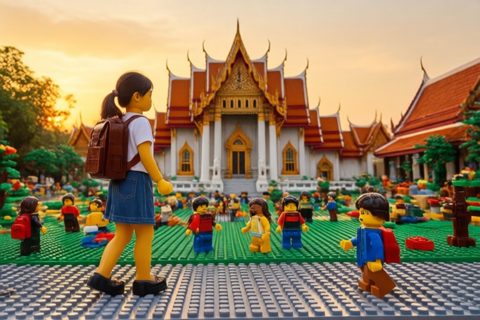
plastic building-block toy world, studded bricks, minifigures💡 Type the style in English💡 风格词用英文输入
Image models understand English style words best — keep the style phrase in English even if the rest of your idea is in Thai or Chinese.图像模型对英文风格词理解最好——即使你点子的其余部分是泰文或中文,也把风格那一句保留英文。
🧠 How it works — one ask, two API calls🧠 它如何运作——一次提问,两次 API 调用
You ask your agent for the prompts, then two HTTPS requests do the rest. You don't install a model or own a graphics card — each call runs on a rented GPU somewhere and sends you back the result.你先问助手要提示词,然后两次 HTTPS 请求搞定其余的。你不用安装模型,也不用拥有显卡——每次调用都在某处租来的 GPU 上运行,再把结果发回给你。
- Codex writes the prompts. Tell your coding agent your one-line idea; it writes a rich image prompt (lighting, lens, composition) and a motion prompt (what moves in the frame) — no extra service or key.Codex 写提示词。把你一句话的点子告诉编程助手;它会写出一段丰富的图像提示词(灯光、镜头、构图)和一段动作提示词(画面里什么在动)——不用额外的服务或密钥。
- HuggingFace draws the still. Send the image prompt to
FLUX.1; it returns one starting picture — your character, full-body, side-on, on a wide background.HuggingFace 画静帧。把图像提示词发给FLUX.1;它返回一张起始图——你的角色,全身、侧面、在宽阔的背景上。 - HuggingFace animates it. Send that still + the motion prompt to
Wan 2.2image-to-video; it returns an MP4 where your character actually takes a few steps.HuggingFace 让它动起来。把这张静帧和动作提示词发给Wan 2.2图生视频;它返回一段 MP4,你的角色真的迈开几步。
💡 Who does what💡 谁负责什么
Codex is your director and programmer — it writes the vivid prompts and the code that calls everything. HuggingFace's Inference Providers give that code one-line access to the best open image and video models (FLUX, Wan, LTX) without you running them yourself. The whole clip costs only pennies of credits and a few minutes.Codex 是你的导演兼程序员——它既写生动的提示词,也写调用一切的代码。HuggingFace 的 Inference Providers 让这些代码一行就能用上最好的开源图像和视频模型(FLUX、Wan、LTX),你自己什么都不用跑。整段动画只花几分钱额度、几分钟时间。
🔑 1 Get set up — one key + your agent准备好——一个密钥 + 你的助手
For the whole pipeline you need just one API key (HuggingFace) plus the coding agent you already use (Codex). A key is a long secret string — treat it like a password.整条流水线只需要一个 API 密钥(HuggingFace),再加上你本来就在用的编程助手(Codex)。密钥是一长串秘密字符——把它当密码看待。
Make a free account, then create an Access Token. It starts with hf_. Enable "Inference Providers" so you can call FLUX and Wan.免费注册一个账号,然后创建一个访问令牌(Access Token),它以 hf_ 开头。开启 “Inference Providers” 才能调用 FLUX 和 Wan。
The AI coding agent you're already using — no extra key in your code. It writes your prompts, writes walk.py, and runs it for you. (Cursor, Claude Code, Copilot — any will do.)你本来就在用的 AI 编程助手——代码里不用额外密钥。它替你写提示词、写 walk.py、并帮你运行。(Cursor、Claude Code、Copilot——哪个都行。)
Store your key as an environment variable so it never ends up in your code or on the web:把你的密钥存成环境变量,这样它永远不会出现在你的代码里或网上:
# macOS / Linux — paste into your Terminal (or add to ~/.zshrc)
export HF_TOKEN="hf_xxxxxxxxxxxxxxxxxxxx"

# then install the one library we need
pip install huggingface_hub
⚠️ Keep keys secret⚠️ 密钥要保密
Never paste a key into a web page, a screenshot, or a public GitHub repo. If a key leaks, anyone can spend your credits — revoke it and make a new one.千万不要把密钥贴到网页、截图或公开的 GitHub 仓库里。一旦泄露,任何人都能花光你的额度——赶紧吊销并换一个新的。
✍️ 2 Codex writes the promptsCodex 写提示词
You don't need a separate AI service for this — the coding agent you're already using, Codex, writes the prompts for you. Describe your idea in plain English and ask for two things: a detailed image prompt and a short motion prompt. Codex writes the rest of the code too, so this step is just a conversation.这一步不需要另一个 AI 服务——你正在用的编程助手 Codex 就会替你写提示词。用大白话描述你的点子,向它要两样东西:一段详细的图像提示词和一段简短的动作提示词。Codex 连其余的代码也一起写,所以这一步就是一次对话。
💬 Say to Codex💬 对 Codex 说
"I want a cartoon of a girl walking past a Thai temple at sunset, in bold cel-shaded anime. Put two prompts in walk.py as image_prompt and motion_prompt: (1) a detailed FLUX image prompt — full body, side view facing left, wide background; (2) a short motion prompt for image-to-video where she takes a few steps with gentle hair movement."“我想做一段动画:一个女孩走过日落下的泰国寺庙,大胆赛璐璐动漫风。在 walk.py 里放两段提示词,命名为 image_prompt 和 motion_prompt:(1) 一段详细的 FLUX 图像提示词——全身、侧面朝左、宽背景;(2) 一段简短的图生视频动作提示词,让她迈几步、头发轻轻飘动。”
Codex fills in the two strings — adding the cinematic detail (lighting, lens, composition) that makes the models shine:Codex 把这两个字符串填好——补上让模型出彩的电影感细节(灯光、镜头、构图):
# Codex wrote these two prompts from your idea
image_prompt = (
    "bold cel-shaded anime, a stylish young woman with a backpack, full body, "
    "side view facing left, walking on a riverside path past a Thai Lanna temple "
    "at golden sunset, thick outlines, flat bright colors, wide background")
motion_prompt = (
    "she takes a few steps forward and keeps walking to the left, "
    "hair and skirt sway gently, soft sunset light flickers on the water")
✅ Why let the agent do it✅ 为什么交给助手写
You can write prompts yourself, but Codex adds the lens / lighting / composition words that turn a flat picture into a cinematic one — and it's already the thing writing and running your walk.py. One assistant, the whole job. (New to directing an agent? See the kids' guide: Make a Cartoon Walk →)你也可以自己写提示词,但 Codex 会补上镜头/灯光/构图这些词,把平淡的画面变得有电影感——而且它本来就是在帮你写、帮你跑 walk.py 的那个助手。一个助手,全部搞定。(不熟悉怎么指挥助手?看少儿版指南:做一个会走路的卡通 →)
🖼️ 3 HuggingFace draws the stillHuggingFace 画静帧
One call to FLUX.1 turns the image prompt into your starting picture. HuggingFace's InferenceClient hides all the networking — you get a Pillow image back.一次调用 FLUX.1 就把图像提示词变成你的起始图。HuggingFace 的 InferenceClient 把所有网络细节都藏起来了——你拿回一张 Pillow 图片。
from huggingface_hub import InferenceClient

hf = InferenceClient(api_key=os.environ["HF_TOKEN"])

still = hf.text_to_image(image_prompt, model="black-forest-labs/FLUX.1-dev")
still.save("still.png")   # your character, ready to animate
↑ The result is the picture below — drawn from the prompt Codex wrote.↑ 结果就是下面这张图——根据 Codex 写的提示词画出来的。

✅ Two things that make the walk work✅ 让走路成立的两件事
Side view + full body (so legs are visible to move) and a wide, open background (so the character has somewhere to walk to). Ask for both in the prompt.侧面 + 全身(这样腿露出来才能动)和宽阔、开阔的背景(角色才有地方可走)。在提示词里把这两点都要上。
🎬 4 HuggingFace animates it (image-to-video)HuggingFace 让它动起来(图生视频)
The final call sends your still plus the motion prompt to Wan 2.2, an open image-to-video model. It returns the finished MP4 — real motion, not a zoom.最后一次调用把你的静帧连同动作提示词发给 Wan 2.2——一个开源的图生视频模型。它返回做好的 MP4——是真实的运动,不是缩放。
video = hf.image_to_video(
    "still.png",
    model="Wan-AI/Wan2.2-I2V-A14B",
    prompt=motion_prompt)              # what moves IN the frame

with open("walk.mp4", "wb") as f:
    f.write(video)
print("Done → still.png + walk.mp4")💡 The motion prompt is the whole trick💡 动作提示词才是全部的关键
Image-to-video models can either give you real movement (legs stepping, hair blowing) or a lazy Ken-Burns zoom. The difference is your motion prompt: describe what moves inside the frame — "takes a few steps and keeps walking, hair sways" — not the camera.图生视频模型可能给你真实的运动(迈腿、头发飘动),也可能给你偷懒的 Ken Burns 缩放。区别就在你的动作提示词:描述画面内什么在动——“迈开几步继续走,头发摆动”——而不是描述镜头。
🔁 5 Extend it — chain a second clip接上一段——接出第二段视频
Want a longer scene, or just a different few seconds? Use the clip you just made as the reference for the next one. The trick is simple: grab the last frame of clip 1 and feed it back into the same image-to-video call as the starting still, with a new motion prompt. Because clip 2 begins on the exact frame clip 1 ended on, the two play back-to-back with no jump.想要更长的场景,或者只是再来不一样的几秒?把你刚做好的这段当作下一段的参考。窍门很简单:取出第一段的最后一帧,把它当作起始静帧、配上一段新的动作提示词,再喂给同一个图生视频调用。因为第二段正好从第一段结束的那一帧开始,两段连起来播放毫无跳跃。
# 1) pull the LAST frame of the first clip (one ffmpeg line)
ffmpeg -sseof -0.1 -i walk.mp4 -update 1 -frames:v 1 last_frame.png

# 2) animate THAT frame with a new motion prompt — your "second video"
clip2 = hf.image_to_video(
    "last_frame.png",
    model="Wan-AI/Wan2.2-I2V-A14B",
    prompt="she slows to a stop and glances back with a soft smile, hair settles")
with open("clip2.mp4", "wb") as f:
    f.write(clip2)

# 3) join the two clips into ONE longer shot — walk.mp4 first, then clip2.mp4
printf "file 'walk.mp4'\nfile 'clip2.mp4'\n" > list.txt
ffmpeg -f concat -safe 0 -i list.txt -c copy scene.mp4    # -> scene.mp4
💡 This is how you build a whole film💡 整部短片就是这样搭出来的
Chain 3–5 short clips, each one seeded by the previous clip's last frame, then concat them. Keep every clip just a few seconds — long single clips let the character slowly drift off-model, but short chained clips stay locked. (Some models also take a video directly as a reference; the last-frame method is the universal one that works with any image-to-video model.)把 3–5 段短片串起来,每一段都用上一段的最后一帧作种子,最后用 concat 拼接。每段都只做几秒——单段太长会让角色慢慢"跑偏",而短的连段能保持稳定。(有些模型也能直接拿一段视频当参考;而"最后一帧"这个方法对任何图生视频模型都通用。)
⚠️ Each clip spends credits⚠️ 每一段都要花额度
A chain of N clips is N image-to-video calls — N times the time and, on the cloud, N times the credits. Plan your shots first. The second clip above actually cost nothing — it was rendered on a local GPU, which is exactly the Out of free credits escape.N 段的链条就是 N 次图生视频调用——时间是 N 倍,在云上额度也是 N 倍。先规划好镜头。上面那第二段其实一分钱没花——它是在本地 GPU 上渲染的,正是下面免费额度用完了那条出路。
🔊 6 Add voices, music & subtitles加入配音、音乐和字幕
Your walk.mp4 is silent. Give it a voice, a soft music bed, and words on screen — all with free tools (edge-tts for the voice, ffmpeg for the mix). As always, you can just ask Codex to write and run these.你的 walk.mp4 是没有声音的。给它配上人声、一段轻柔的背景音乐和屏幕字幕——全用免费工具(人声用 edge-tts,混音用 ffmpeg)。和往常一样,你也可以直接让 Codex 替你写好并运行。
1) A voice — free text-to-speech1) 人声——免费的文字转语音
edge-tts turns text into speech with no API key. Pick any voice — it has English, Thai, Chinese and hundreds more — or record yourself instead.edge-tts 不用 API 密钥就能把文字变成语音。任选一个声音——英文、泰文、中文等几百种都有——也可以自己录。
pip install edge-tts
# write one spoken line to voice.mp3 (try th-TH-PremwadeeNeural for Thai)
edge-tts --voice en-US-AriaNeural --text "Good morning! Off to the temple." --write-media voice.mp3
2) Subtitles — a tiny .srt file2) 字幕——一个小小的 .srt 文件
Subtitles are just a text file of "when → what". Save this as lines.srt — add a second language line for your audience if you like:字幕其实就是一个"什么时间 → 显示什么"的文本文件。把下面这段存成 lines.srt——愿意的话可以再加一行另一种语言给你的观众:
1
00:00:00,000 --> 00:00:03,500
Good morning! Off to the temple.
3) Mix it together — one ffmpeg recipe3) 全部混到一起——一条 ffmpeg 命令
Turn the music down low so the voice comes through, mix the two, then lay the audio over the video and burn in the subtitles:把音乐调低,让人声透出来,把两者混合,再把音轨叠到视频上,并把字幕烧进画面:
# quiet the music to 25% and mix it under the voice
ffmpeg -i music.mp3 -i voice.mp3 -filter_complex \
  "[0:a]volume=0.25[m];[m][1:a]amix=inputs=2:duration=longest[a]" \
  -map "[a]" mixed.mp3

# add the sound to the silent video + burn in the subtitles
ffmpeg -i walk.mp4 -i mixed.mp3 -vf "subtitles=lines.srt" \
  -c:v libx264 -pix_fmt yuv420p -movflags +faststart \
  -c:a aac -shortest final.mp4          # -> final.mp4: voice + music + words
💬 Or just ask Codex💬 或者直接交给 Codex
"Add a voice to walk.mp4 saying '…' with edge-tts, a quiet music bed from music.mp3, and burned-in English + Thai subtitles, then save final.mp4." — Codex writes the edge-tts and ffmpeg for you and runs it.“给 walk.mp4 配音,用 edge-tts 说‘……’,再用 music.mp3 垫一段轻音乐,并把中英双语字幕烧进画面,然后存成 final.mp4。”——edge-tts 和 ffmpeg 都由 Codex 替你写好并运行。
🧩 The whole script, A-to-Z🧩 完整脚本,从头到尾
Here is everything above in one file. Set your two keys, run it, and you get still.png and walk.mp4. This is the exact, tested pipeline that produced the clip at the top.上面的一切都在这一个文件里。设好你的两个密钥,运行它,就得到 still.png 和 walk.mp4。这就是生成顶部那段视频的、经过实测的完整流程。
make_cartoon_i2v.py — one idea → one animated clip (Codex + HuggingFace)
# make_cartoon_i2v.py — turn a one-line idea into a short cartoon clip.
# Codex wrote the two prompts; HuggingFace draws the still and animates it.
# Run:  export HF_TOKEN=... ; python make_cartoon_i2v.py
import os
from huggingface_hub import InferenceClient

hf = InferenceClient(api_key=os.environ["HF_TOKEN"])   # hf_...

# --- Codex wrote these two prompts from your idea ---
image_prompt = (
    "bold cel-shaded anime, a stylish young woman with a backpack, full body, "
    "side view facing left, walking past a Thai Lanna temple at golden sunset, "
    "thick outlines, flat bright colors, wide background")
motion_prompt = (
    "she takes a few steps forward and keeps walking left, hair and skirt sway")

# 1) HuggingFace FLUX.1 draws the starting still
still = hf.text_to_image(image_prompt, model="black-forest-labs/FLUX.1-dev")
still.save("still.png")

# 2) HuggingFace Wan 2.2 turns the still into a video
video = hf.image_to_video("still.png", model="Wan-AI/Wan2.2-I2V-A14B", prompt=motion_prompt)
with open("walk.mp4", "wb") as f:
    f.write(video)
print("Done → still.png + walk.mp4")
💸 Cost, limits & real gotchas💸 成本、限制和真实的坑
Things we actually hit building this — so you don't lose an afternoon to them:我们做这个时真正踩到的坑——省得你浪费一下午:
- FLUX sizes are fixed buckets. Width/height must be one of
768, 832, 896, 960, 1024, 1088, 1152, 1216, 1280, 1344. A wrong size returns a422error. We used1280×768for a landscape walk.FLUX 的尺寸是固定档位。宽/高必须是768、832、896、960、1024、1088、1152、1216、1280、1344之一。尺寸不对会返回422错误。横版走路我们用了1280×768。 - Safety filters can hand you a black frame. NVIDIA's hosted image model filters many human subjects to an all-black image (
finishReason: CONTENT_FILTERED) — especially anything that reads as a child. That's a big reason we draw the still on HuggingFace FLUX instead, and describe a "young woman / cartoon character," never a "kid."安全过滤器可能直接给你一张黑图。NVIDIA 托管的图像模型会把很多人物主体过滤成全黑图(finishReason: CONTENT_FILTERED)——尤其是任何看起来像小孩的。这正是我们改用 HuggingFace FLUX 来画静帧、并把角色描述成“年轻女性/卡通角色”而绝不写“小孩”的一大原因。 - Image-to-video is the slow, pricey step. It takes a few minutes and most of the credits. Keep clips short (2–5 seconds) while you iterate, and re-roll the seed if a limb looks wrong.图生视频是又慢又贵的一步。它要花几分钟,也用掉大部分额度。调试时把片段做短(2–5 秒),出现多余肢体之类的瑕疵就换种子重生成。
- Make it phone-safe. Raw model output sometimes won't play on phones. Re-encode once with ffmpeg:
ffmpeg -i walk.mp4 -c:v libx264 -pix_fmt yuv420p -movflags +faststart out.mp4.做成手机能播的。模型原始输出有时在手机上播不了。用 ffmpeg 重新编码一次:ffmpeg -i walk.mp4 -c:v libx264 -pix_fmt yuv420p -movflags +faststart out.mp4。 - Keys are money. They're stored as environment variables for a reason — never commit them. Watch your usage dashboards on both sites.密钥就是钱。把它们存成环境变量是有原因的——绝不要提交到代码库。在两个网站的用量面板上盯着花费。
🆚 Want it fully offline instead?🆚 想完全离线来做?
This page rents the GPUs by API. If you'd rather run everything on your own machine with ComfyUI and a local GPU box, see the companion guide: How to Make a Cartoon with AI (local / DGX Spark) →本页是用 API 租用 GPU。如果你更想在自己的机器上用 ComfyUI 和本地 GPU 跑全部流程,看配套指南:如何用 AI 制作动画(本地 / DGX Spark)→
🪫 Out of free credits? Three escapes🪫 免费额度用完了?三条出路
Every provider's free tier is small, and image-to-video burns through it fastest — eventually you'll hit a 402 Payment Required. Three ways to keep going; two are free.每家的免费额度都不大,而图生视频烧得最快——你迟早会撞上 402 Payment Required。有三条路可以继续,其中两条免费。
1 · Swap to the other cloud — a little more work1 · 换到另一家云——多花一点点功夫
The image and video steps are the ones that burn credits, and each provider bills separately — so when HuggingFace runs dry, run those steps somewhere else. NVIDIA's API catalog (build.nvidia.com) hosts image models, and other providers (fal, Replicate) host video, each with its own free tier. Wiring up a second provider's key and request format is a little more work, but it hands you a fresh pot of free credits. Mix and match: image on one provider, video on another — whoever still has credit. Each model page on build.nvidia.com gives you a copy-paste snippet.真正烧额度的是图像和视频这两步,而每家都是分开计费的——所以 HuggingFace 用完了,就把这两步换到别处跑。NVIDIA 的 API 目录(build.nvidia.com)托管图像模型,视频模型则可以用别的服务商(fal、Replicate),各有各的免费额度。把第二家的密钥和请求格式接好要多花一点点功夫,但你就又有一份免费额度了。可以混搭:图像用一家、视频用另一家——谁还有额度就用谁。build.nvidia.com 上每个模型页面都给你一段可直接复制的代码。
2 · Wait, or top up2 · 等一等,或者充值
Free credits reset every month — sometimes you just wait a few days. Or buy pre-paid credits, or go HuggingFace PRO for ~20× the included usage. Image-to-video is only pennies per clip once you're paying, so a small top-up goes a long way.免费额度每月都会重置——有时候等几天就行。或者买预付额度,或者升级 HuggingFace PRO,包含用量大约是 20 倍。一旦付费,图生视频每段也就几分钱,小小充值就能用很久。
3 · Go fully local — free forever3 · 完全在本地跑——永远免费
Pull the models from HuggingFace onto your own machine and never pay per clip again. Two pieces work side by side:把模型从 HuggingFace 拉到你自己的机器上,就再也不用按段付费了。两个部分并肩工作:
Prompts → Codex, or a local LLM. Codex already writes your prompts for free. If you'd rather have a model write them automatically (no internet, no agent), run one on your own computer with Ollama:提示词 → Codex,或本地大模型。Codex 本来就免费替你写提示词。如果你更想让一个模型自动写(不联网、不靠助手),就用 Ollama 在自己电脑上跑一个:
# one-time setup: install Ollama, then pull a small model
ollama pull llama3.2

# then talk to your LOCAL Ollama (it speaks the OpenAI format)
from openai import OpenAI
llm = OpenAI(base_url="http://localhost:11434/v1", api_key="ollama")
image_prompt = llm.chat.completions.create(
    model="llama3.2",
    messages=[{"role": "user", "content": "Write one vivid image prompt for ..."}],
).choices[0].message.content
⚠️ Ollama writes text — it doesn't draw⚠️ Ollama 只写文字——它不画图
Ollama runs language models, not image models. To draw the still, you pull the image model from HuggingFace and run it with 🤗 diffusers. Ollama writes the prompt; diffusers draws it — they run side by side.Ollama 跑的是语言模型,不是图像模型。要画静帧,你得把图像模型从 HuggingFace 拉下来、用 🤗 diffusers 来跑。Ollama 写提示词,diffusers 把它画出来——两者并肩运行。
The image model → pull from HuggingFace, run with diffusers. Download the weights once, then generate on your GPU. FLUX.1-schnell is small and fast (4 steps); on a lighter machine use SDXL-Turbo or SD 1.5.图像模型 → 从 HuggingFace 拉取,用 diffusers 跑。权重下载一次,之后就在你的 GPU 上生成。FLUX.1-schnell 又小又快(4 步);机器较弱就用 SDXL-Turbo 或 SD 1.5。
# one-time install. FLUX.1-schnell, SDXL-Turbo and SD 1.5 are all OPEN —
# no login. (Only gated models like FLUX.1-dev need: huggingface-cli login)
pip install -U diffusers transformers accelerate sentencepiece huggingface_hub
import torch

# ── Option A: FLUX.1-schnell — best quality, just 4 steps (strong GPU) ──
from diffusers import FluxPipeline
pipe = FluxPipeline.from_pretrained(
    "black-forest-labs/FLUX.1-schnell", torch_dtype=torch.bfloat16).to("cuda")
img = pipe(image_prompt, num_inference_steps=4, guidance_scale=0.0,
           width=1280, height=768).images[0]          # first run downloads the weights
img.save("still.png")

# ── Option B: SDXL-Turbo — 1 step, much lighter (~7 GB VRAM) ──
from diffusers import AutoPipelineForText2Image
pipe = AutoPipelineForText2Image.from_pretrained(
    "stabilityai/sdxl-turbo", torch_dtype=torch.float16).to("cuda")
img = pipe(image_prompt, num_inference_steps=1, guidance_scale=0.0).images[0]
img.save("still.png")

# ── Option C: Stable Diffusion 1.5 — the classic, runs almost anywhere (~4 GB) ──
from diffusers import StableDiffusionPipeline
pipe = StableDiffusionPipeline.from_pretrained(
    "stable-diffusion-v1-5/stable-diffusion-v1-5", torch_dtype=torch.float16).to("cuda")
img = pipe(image_prompt, num_inference_steps=25, guidance_scale=7.5).images[0]
img.save("still.png")
No NVIDIA GPU? Swap .to("cuda") for .to("mps") on a Mac, or .to("cpu") anywhere — it still works, just slower. After the first download it all runs offline and free.没有 NVIDIA 显卡?在 Mac 上把 .to("cuda") 换成 .to("mps"),或在任何机器上换成 .to("cpu")——照样能跑,只是慢一些。第一次下载之后,全程离线、免费。
The video step (Wan / LTX image-to-video) runs locally too, but it's heavy and wants a real GPU — that's exactly what the companion guide covers: local / ComfyUI / DGX Spark →视频这一步(Wan / LTX 图生视频)也能在本地跑,但它很吃资源、需要一块真正的 GPU——这正是配套指南要讲的:本地 / ComfyUI / DGX Spark →
Bonus — pull NVIDIA's own models locally. NVIDIA ships models as NIM containers you can run on your own NVIDIA GPU — an OpenAI-style endpoint on localhost, handy if you want a local LLM to write prompts or to self-host an image model. A free nvapi- key (from build.nvidia.com) is the registry login:附加 —— 把 NVIDIA 自己的模型拉到本地。NVIDIA 把模型做成了可以在你自己的 NVIDIA GPU 上运行的 NIM 容器——在 localhost 上提供 OpenAI 风格的接口,想用本地大模型写提示词、或自托管图像模型时很方便。一个免费的 nvapi- 密钥(来自 build.nvidia.com)就是容器仓库的登录凭据:
# log in to NVIDIA's container registry with your nvapi- key
docker login nvcr.io -u '$oauthtoken' -p "$NVIDIA_API_KEY"

# pull + run a model NIM — it serves an OpenAI-compatible API on :8000
docker run --rm --gpus all -p 8000:8000 \
  -e NGC_API_KEY="$NVIDIA_API_KEY" \
  nvcr.io/nim/nvidia/nemotron-3-super-120b-a12b:latest

# then point the SAME code at your local NIM instead of the cloud:
#   OpenAI(base_url="http://localhost:8000/v1", api_key="x")
Big models need a big GPU — pick a smaller NIM (e.g. an 8B) for a normal machine. NVIDIA also publishes open weights on HuggingFace (the nvidia/… repos, like the Nemotron family); pull those with huggingface-cli download, or run a ready-made one straight in Ollama: ollama run nemotron-mini.大模型需要大显卡——普通机器就选小一点的 NIM(比如 8B)。NVIDIA 也在 HuggingFace 上发布开源权重(nvidia/… 仓库,比如 Nemotron 系列);用 huggingface-cli download 拉下来,或者直接在 Ollama 里跑现成的:ollama run nemotron-mini。
💡 The smart hybrid💡 聪明的混合用法
Write prompts free on Ollama, and spend your scarce cloud credits only on the one genuinely expensive step — image-to-video.提示词在 Ollama 上免费写,把宝贵的云端额度只花在真正贵的那一步——图生视频上。